Blog › Reddit unrestricted AI image-to-image: What to know about AnimatorHub.ai
Reddit unrestricted AI image-to-image: What to know about AnimatorHub.ai
Reddit unrestricted AI image-to-image - AnimatorHub.ai: prompts, privacy, credits, and image-to-video tips.
Key Takeaways
Reddit searches for unrestricted AI image-to-image tools often point toward image-to-video workflows, privacy questions, and adult-content boundaries. The practical choice comes down to input control, clear policies, predictable pricing, and careful prompting.
- “Unrestricted” usually means fewer arbitrary refusals, not the absence of safety rules.
- Image-to-image changes a still image, while image-to-video adds motion to it.
- PNG, JPG, and WEBP files can serve as starting points for image-based video generation.
- Short prompts with clear movement and camera directions are easier to evaluate.
- Privacy, age rules, credit costs, and sharing settings deserve attention before regular use.
Understanding the Reddit unrestricted AI image-to-image search
The phrase Reddit unrestricted AI image-to-image - AnimatorHub.ai is more of a search shortcut than a precise technical category. People using it may be looking for a still-image editor, an image-to-video generator, or a service that allows mature artistic work with fewer refusals. Reddit can surface useful demonstrations, but each claim still needs to be checked against the actual interface and policy pages.
What users usually mean by “unrestricted” image tools
“Unrestricted” can mean several different things. One person may want fewer filters around adult themes, while another may mean more control over style, anatomy, character continuity, or image references. A good service states its limits plainly rather than treating the word as a promise that every request will be accepted.
For adult creators, consent and legality remain part of the basic workflow. The absence of broad content filters does not remove hard boundaries around minors or exploitative material. It is also worth checking whether files remain private, whether public sharing is optional, and whether payment records expose more information than expected.
How image-to-image differs from image-to-video generation
Image-to-image generally starts with a source picture and produces another picture based on instructions such as a changed style, setting, color treatment, or visual detail. Image-to-video starts with a still image and adds time, movement, expressions, and scene dynamics. The source image remains the visual anchor, but the result is a sequence rather than a single frame.
That difference changes the prompt. An image edit might ask for a warmer palette or a painted finish. A video prompt needs an action, a pace, and often a camera direction. “The subject turns slowly toward the lens while loose hair moves in a light breeze” gives a motion model more useful information than a general request for a better picture.
Why privacy, output control, and content policies matter
An attractive sample is only one part of the decision. You also need to know who can view uploaded files, whether finished videos default to private, how public sharing works, and what happens when a generation fails. These details matter more when a reference image contains a real person, private artwork, or adult material.
Output control matters for a different reason. Duration, framing, shot type, motion strength, and negative prompts can turn a random experiment into a repeatable process. Read the stated rules before uploading anything, and keep references limited to material you have the right to use.
What AnimatorHub.ai offers for image-based creation
AnimatorHub.ai provides three generation modes: Text-to-Video, Image-to-Video, and Video-to-Video. In the image-based mode, a still PNG, JPG, or WEBP image becomes the starting point for a video clip, with the prompt describing natural motion, expressions, and scene dynamics. The platform also provides choices for duration, aspect ratio, and shot type.
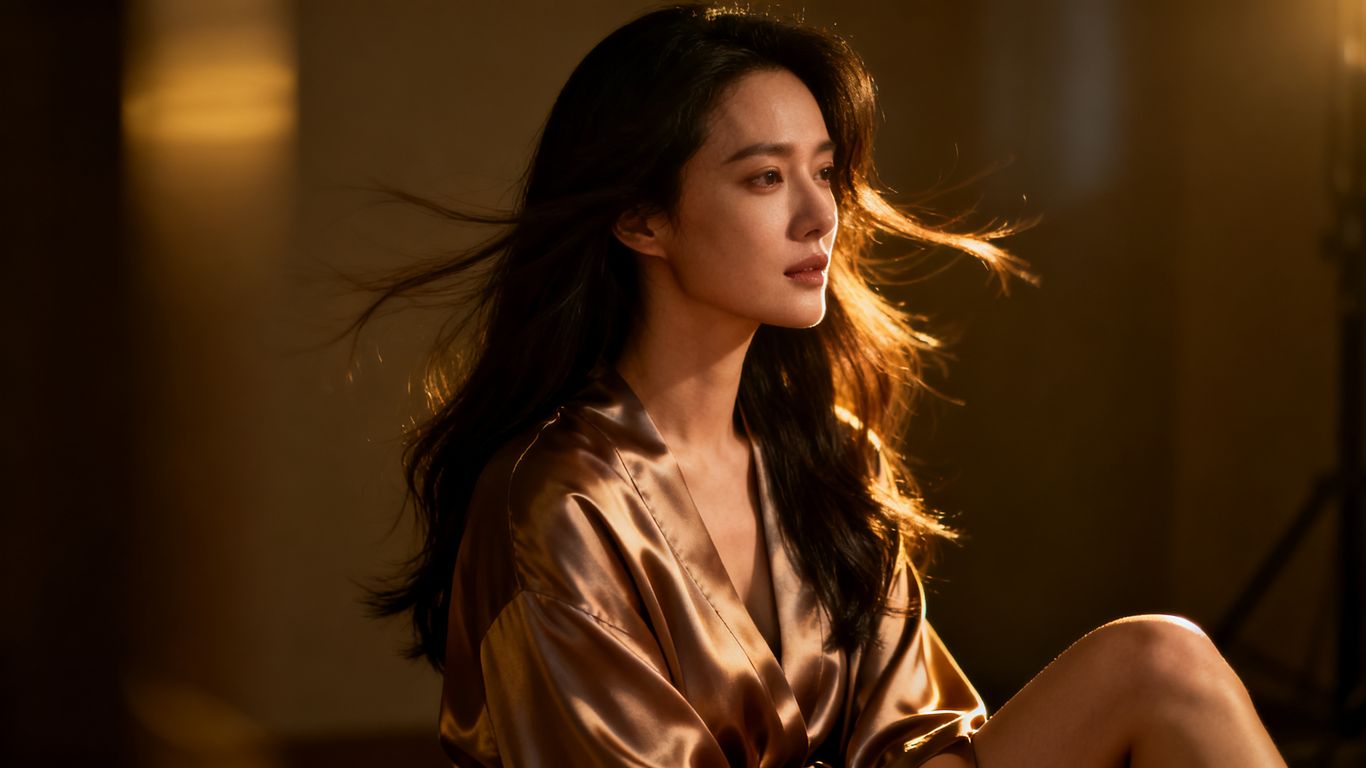
The useful distinction is that the image supplies visual identity while the prompt supplies behavior. That makes the workflow suitable for animating artwork, photos, character references, or storyboards when the first frame already has the look you want.
Using Image-to-Video to animate still images
Image-to-Video accepts one still image and turns it into a moving clip. The system interprets the source image, then applies the motion described in the prompt. A portrait might blink, shift its expression, or turn slightly; a wider scene might include environmental movement and a camera change.
Start with a source that has a clear subject and readable edges. Strong lighting and a simple pose usually make it easier to judge whether the generated motion respects the original composition. If the first result drifts too far, reduce the number of actions rather than adding more adjectives.
Choosing duration, aspect ratio, and shot type
The available durations are five, ten, and fifteen seconds. Aspect ratio affects how much of the source composition remains visible, while shot type helps set the visual distance and framing. A vertical source may suit a portrait-oriented result, whereas a wide scene may need room for a lateral camera move.
Short clips are useful for testing a prompt because they cost fewer credits and reveal problems quickly. Longer clips can give a movement more time to develop, but they also give unwanted motion more time to become visible. Choose the smallest duration that can express the action you need.
Applying prompts for movement, expressions, and scene dynamics
A motion prompt works best when it describes what changes over time. Mention the subject first, then the main action, followed by the camera and any environmental response. For example: “A woman slowly raises her chin and smiles, soft curtains move behind her, gentle push-in, warm window light.”
Keep the source image in mind. If it shows a seated subject, ask for a subtle turn or hand movement instead of a full-body walk. Specific motion beats vague mood because the generator has a clearer sequence to follow.
Comparing image-based workflows with text-to-video and video-to-video
Image-to-Video is the most direct choice when you already have a visual reference. Text-to-Video starts from a written scene, so it offers a blank starting point but may require more work to keep a character or composition consistent. Video-to-Video begins with existing footage and applies changes to that source.
The right mode depends on what you want to preserve. A still image preserves the initial look, a text prompt establishes the scene from scratch, and an existing clip preserves timing and performance cues. The image animation guide is a useful companion when you want to compare those starting points in practical terms.
How to create an image-based video on AnimatorHub.ai
An image-based video workflow is simple on paper, but the order of decisions affects the result. Prepare the source, describe one main motion, set the clip controls, and review the output before adding complexity. Treat the first generation as a test of the prompt rather than a final verdict on the source image.
Preparing a compatible PNG, JPG, or WEBP image
Use a PNG, JPG, or WEBP still image with a clear subject and enough resolution for the intended framing. Check the edges of the body, clothing, hair, and background before uploading. Cropped limbs, busy patterns, and extreme blur can make motion harder to keep stable.
A clean source does not need to be plain. It simply needs a readable visual structure. If the face is the focus, give it room and avoid placing important features close to the frame edge.
Writing prompts that preserve the source image
Begin by naming what should remain stable: the subject, clothing, setting, color palette, or illustration style. Then add the action. “Preserve the character design and red coat; the character looks left and takes one slow breath” gives the model a stronger anchor than “make it cinematic.”
Use one primary action for the first pass. Once the result holds the subject correctly, add a second detail such as a background movement or a gentle camera shift. This staged approach makes it easier to identify which instruction caused a change.
Controlling camera movement, lighting, style, and motion
Camera language can be concrete: slow push-in, locked-off medium shot, gentle pan right, low-angle view, or shallow focus. Lighting can be equally direct, such as cool moonlight, soft side light, or warm practical lamps. Style references should support the source rather than fight it.
A prompt with several control areas can still stay readable. State the subject and motion first, then camera, lighting, and style. Avoid asking for a fast orbit, a slow zoom, a static frame, and a handheld shake in the same short clip.
Using negative prompts to reduce unwanted results
Negative prompts help identify what should not appear, such as extra fingers, warped facial features, flicker, sudden cuts, or excessive camera shake. They are most useful when based on a visible problem in an earlier result. A long list of every possible defect can compete with the positive direction.
Try a short negative prompt first, then adjust one item at a time. The platform can auto-generate negative prompts, but reviewing them remains useful because your source image may need a more specific restriction.
Reviewing, downloading, or regenerating the output
Review the clip for subject identity, motion continuity, facial stability, framing, and unwanted changes to the background. If it works, download the completed video or change its visibility according to your intended use. If it fails or expires, regeneration can prefill the original prompt, duration, ratio, and negative prompt.
A useful review habit is to compare the output with the source image side by side. Watch once for technical problems and once for whether the movement actually supports the scene. The image-to-video workflow offers another practical reference for this review stage.
Prompt strategies for more consistent results
Prompt writing is less about piling on descriptive words and more about giving the model an ordered set of visual instructions. State what is present, what moves, how the camera behaves, and what must remain unchanged. This also makes failed generations easier to diagnose.
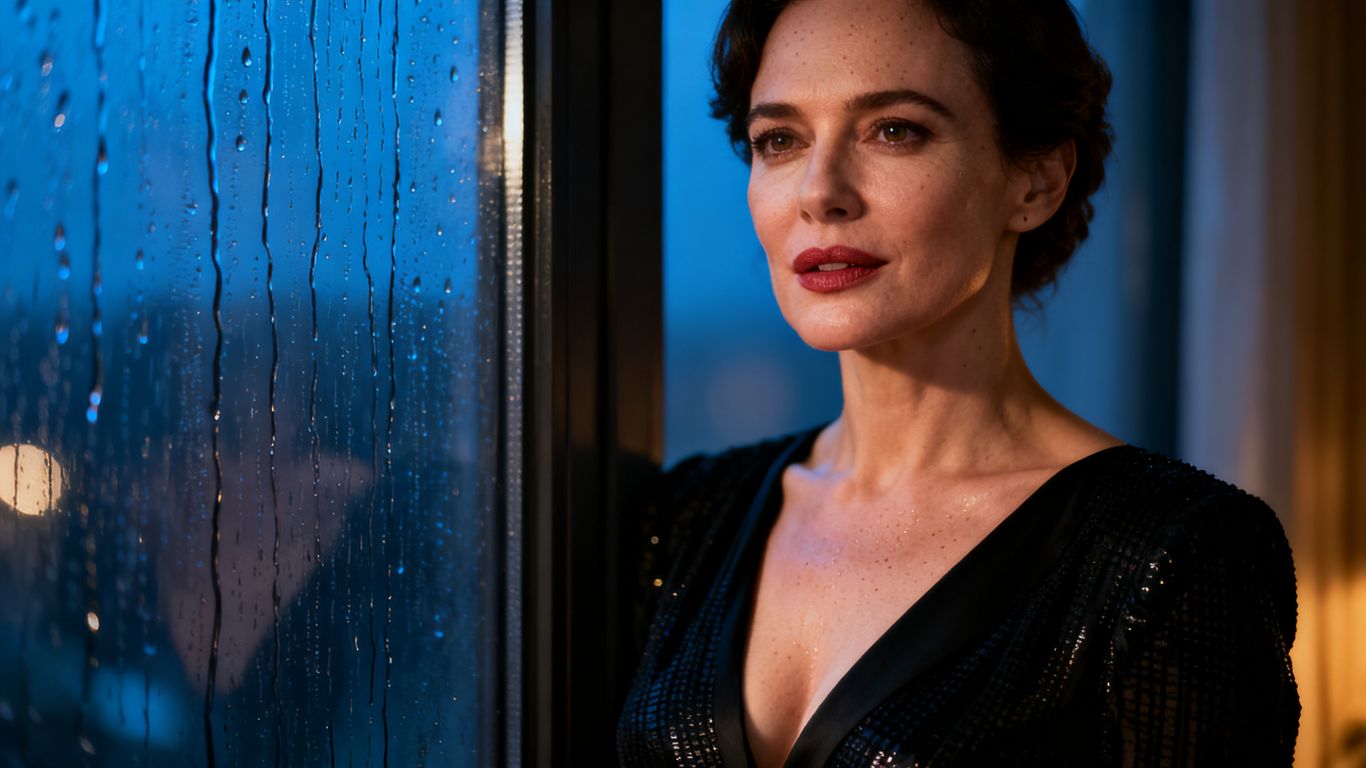
Consistency improves when each prompt has a clear center. If the source already handles appearance well, spend the prompt on movement and camera behavior instead of rewriting every visual detail.
Describing the subject and intended motion
Name the subject in plain terms, then describe a modest action with a clear pace. “A person in a black jacket turns their head slowly toward the window” is easier to follow than “give the subject energy and life.” Add a reaction only when it supports the main movement.
For group scenes, specify who moves and who stays still. For animals, artwork, or fantasy characters, mention the key feature that must remain stable. The goal is not a long paragraph. It is a dependable instruction sequence.
Adding cinematic composition and camera language
Composition terms tell the model how the viewer should see the action. Medium shot, close-up, wide shot, profile, overhead view, and centered portrait each imply different spatial priorities. Camera terms then describe how that framing changes over time.
Lighting and lens language can add atmosphere without replacing the action. “Slow dolly in, shallow depth of field, soft blue evening light” works best after the subject and movement are already clear. A prompt should read like a compact shot direction, not a pile of disconnected tags.
Combining realism, anime, and painterly style directions
Style directions can be combined when they point in the same direction. A source may call for realistic lighting with anime character design, or painterly textures with a cinematic camera. Put the dominant style first and use the second style as a supporting quality.
If the output becomes visually confused, remove one style term and test again. The original image often already contains the strongest style signal, so preserving it may work better than adding several new references.
Avoiding conflicting instructions and vague wording
Conflicts appear when a prompt requests opposite camera behavior, incompatible speeds, or too many simultaneous actions. Vague words such as “better,” “cool,” and “dynamic” do not tell the model what should move or remain still. Replace them with visible actions and measurable direction.
A practical editing pass can follow this order:
- Remove actions that are not necessary to the shot.
- Replace mood words with visible movement or lighting.
- Keep one main camera movement per short clip.
- Add a negative prompt only for observed problems.
After that pass, run a short test and compare it with the source. The prompt guide can help with cinematic vocabulary and prompt structure when a scene needs more control.
Privacy, anonymity, and adult-content boundaries
Privacy is part of the creative workflow, especially when uploaded images or generated videos are personal. An anonymous account model may reduce public identity exposure, but it does not mean that users can ignore account security or platform rules. Read the privacy and content-policy pages before using sensitive references.
How anonymous accounts and private file storage work
The service uses an anonymous creator profile with no display name, avatar, or public identity. Email is visible only to the account owner inside the user dropdown, and the public interface does not show personal information or social hooks. Uploaded files are stored privately and tied to the account.
Those details reduce exposure in the public gallery, but they do not change your responsibility for the material you upload. Use strong account access practices and avoid sharing files that include another person without permission.
Age verification and the 18+ requirement
The platform is for adults only. Users must be 18 or older and confirm their age through the gate shown on the first visit. This requirement applies before using the generation features, not only when making mature content.
Age verification is one of the basic boundaries to check when comparing services found through Reddit. A clear gate is more useful than vague language about adult access because it tells you when the rule applies.
The platform’s rules on minors and prohibited content
Content involving minors is prohibited, including any sexualized or exploitative material. The stated hard limits include no content involving minors and no child sexual abuse material of any kind. Adult content can still be subject to legality, consent, and the full terms of service.
Do not use a real person’s likeness for intimate material without permission. If a concept depends on ambiguity about age, change the concept before uploading it. A broad creative policy is not permission to ignore these boundaries.
Keeping generated videos private or sharing them publicly
Generated videos can be watched, downloaded, hidden, deleted, or shared publicly through the visibility controls. Private files remain in the personal library unless you choose to make them public. The Explore gallery contains community videos that creators have set to public.
Check the visibility setting before sending a link or publishing a clip. Private storage is useful for drafts, tests, and personal work, while public sharing should be a deliberate choice rather than an accidental default.
Credits, payments, and workflow planning
The credit model is designed around video length rather than a recurring subscription. One credit equals one second of generated video, so the basic cost of a clip can be estimated before you start. That makes short prompt tests easier to budget, especially when several variations are likely.
How the pay-as-you-go credit system works
The pay-as-you-go system uses credits for generation, with one credit charged for each second of generated video. Credits do not expire once purchased. The wallet shows the current balance, transaction history, and low-credit warnings before generation begins.
This structure favors deliberate testing. You can make a five-second trial, review the motion, then decide whether a longer version is worth the additional credits. It also avoids paying for a recurring plan when your workflow is occasional.
Estimating costs for five-, ten-, and fifteen-second clips
Because the rate is one credit per second, the credit requirement is straightforward. The dollar amount depends on the package’s effective rate, so the following examples show the range across the listed packages.
| Clip length | Credits needed | At $0.30 per credit | At $0.25 per credit | At $0.20 per credit |
|---|---|---|---|---|
| 5 seconds | 5 | $1.50 | $1.25 | $1.00 |
| 10 seconds | 10 | $3.00 | $2.50 | $2.00 |
| 15 seconds | 15 | $4.50 | $3.75 | $3.00 |
These figures describe generation cost only and assume the full clip completes at the selected duration. A small test remains the sensible starting point when you are still tuning a source image or prompt.
Comparing credit packages and effective rates
The listed packages are 100 credits for $30, 500 credits for $125, and 1,000 credits for $200. Their effective rates are $0.30, $0.25, and $0.20 per second respectively. The larger packages lower the effective rate, but the best choice depends on how often you expect to generate.
Crypto payments are supported, while card payments are noted as coming soon. Check the current Credits page and transaction status before assuming a payment has completed, particularly when you are working with a small remaining balance.
Using the library, albums, and regeneration tools efficiently
The My Videos library shows generation status, including pending, processing, completed, failed, and expired. Completed clips can be organized into albums with drag-and-drop ordering, while bulk actions help with deletion or album placement. These features become useful once prompt tests begin to accumulate.
Keep successful source-and-prompt combinations together, and label albums by project or visual style. Regenerate failed or expired videos from the saved settings instead of rebuilding the request from memory. That preserves a cleaner record of what changed between attempts.
Finding inspiration and evaluating alternatives through Reddit
Reddit is useful for finding prompt ideas, motion tests, and honest complaints, but a post is still a user report. Look for the original input, the output duration, the settings, and whether the clip has been edited after generation. A polished montage may not tell you much about the underlying workflow.
How to assess user claims and demonstrations
Ask whether the demonstration shows the complete result or only its best few seconds. Check for cuts, interpolation, upscaling, filters, and audio added after generation. A good comparison keeps the source image, prompt, duration, and framing visible.
Also separate product behavior from user skill. A strong creator may get a better result because they chose a cleaner source and a simpler motion prompt. Repeating the test with your own image is more informative than relying on a dramatic claim.
Questions to ask about quality, privacy, and restrictions
Before creating an account, check the output resolution, file types, duration choices, payment model, privacy settings, and content rules. Ask whether the service stores uploads privately and whether public sharing requires an explicit action. These questions matter just as much as a sample clip.
The private image animation overview is a useful place to compare those practical concerns with the image-based workflow. Still, confirm current terms and pricing directly because product pages can change.
When AnimatorHub.ai is a better fit than conventional tools
AnimatorHub.ai may suit an adult creator who already has a still image, wants Image-to-Video generation, prefers pay-as-you-go credits, and needs private account storage. It also offers Text-to-Video and Video-to-Video modes for projects that begin with written scenes or existing footage.
That does not make every result automatic. The better fit comes from the combination of a suitable source image, clear controls, adult access, and a workflow that lets you test short clips before spending more. If your priority is preserving a particular reference while adding motion, image-based generation is the most direct route.
Setting realistic expectations for image-based AI generation
AI video generation can shift facial details, hands, clothing, proportions, and background elements. Motion may be subtle when the prompt is cautious, or unstable when it asks for a complex action in a short clip. A strong source image improves the odds, but it cannot guarantee perfect continuity.
Plan for a few iterations and judge each one against the original goal. The best workflow treats prompting, source preparation, and review as connected steps rather than expecting one sentence to solve every visual problem.
Conclusion
A Reddit search for unrestricted AI image-to-image tools becomes more useful when you separate image editing from image-to-video generation, check privacy and policy details, and test prompts with a clear budget. Start with a compatible still image, choose one visible motion, review a short clip, and expand only when the source and workflow hold together.
Frequently Asked Questions
Is “unrestricted” the same as having no rules?
No. The term usually refers to fewer arbitrary refusals or broader creative access. Services can still prohibit illegal, exploitative, or harmful material and may require adult users to follow specific content rules.
What is the main difference between image-to-image and image-to-video?
Image-to-image produces a new still image from a source and instructions. Image-to-video uses a still image as the visual starting point and adds movement across a sequence of frames.
Which image formats are commonly accepted for image-based video?
PNG, JPG, and WEBP are common formats for still-image video workflows. Always check the service interface for current size, resolution, and file limits before uploading.
How can a prompt preserve the original image?
State what must stay stable, such as the subject, clothing, composition, or style. Then describe one main movement and add camera or lighting directions only when they support that movement.
Are short clips better for testing prompts?
Usually. A short clip costs less and exposes problems quickly, which makes it easier to revise the source image or prompt before attempting a longer generation.
What should I check before using an adult image generator?
Review the age requirement, content policy, privacy terms, storage settings, payment method, sharing controls, and rules about real-person likenesses. Use only material you have the right and permission to use.
Why do generated videos sometimes change faces or hands?
The system has to predict movement between frames, and complex motion can make details drift. Clear source images, modest actions, stable camera directions, and targeted negative prompts can reduce those changes, but they cannot remove them entirely.