Blog › How to use an AI comic generator to create and animate comic scenes
How to use an AI comic generator to create and animate comic scenes
Plan panels, keep characters consistent, and animate comic art with an ai comic generator.
Key Takeaways
A strong comic project starts with a clear story plan, then moves through deliberate visual choices and careful review. Animation works best when it supports the scene rather than distracting from it.
- Choose a tool based on whether you need comic panels, image creation, or video animation.
- Plan each scene around a clear visual beat and concise dialogue.
- Keep character details and visual direction consistent from panel to panel.
- Write prompts that specify the subject, action, setting, and composition.
- Review continuity and readability before organizing or sharing the finished work.
Choose the right AI comic generator for your project
An AI comic generator can help turn a rough idea into visual panels, but tools differ in what they produce and how much control they give you. Before starting, decide whether you need a page of sequential artwork, a single image, or motion for existing artwork. The right choice depends on the stage of your project, not just the novelty of the tool.
Compare comic panel creation with image and video animation
Comic creation and video animation solve different problems. A comic tool focuses on arranging a story into panels, while an image tool makes a still visual and a video tool adds movement to a clip or image. Animator Hub is a video generation platform that creates video from text, images, or existing video sources; it is not described as a comic-panel generator. Its pay-as-you-go system charges one credit per second of generated video, so consider the intended output before setting a budget.
| Workflow | Best fit | Typical result |
|---|---|---|
| Comic panel creation | A story told through a sequence of still images | Panels arranged to show story beats |
| Image generation | A single scene or character visual | One still image to use or revise |
| Video generation | Motion, camera movement, or a short scene | A moving clip based on text or source media |
Think of these as separate stages that can work together: make the panels first, then choose whether any one scene benefits from motion. A quick test with a free comic-generation option can help you see whether a panel-based workflow suits your idea before you commit to a larger project.
Check style controls, reference-image support, and output formats
Look for controls that match the work you plan to make. A comic project may need page layouts, repeatable character references, and image files that can be placed into a page editor. An animation workflow needs controls for duration, aspect ratio, and movement. Check whether a tool accepts the reference material you have and whether its exports will fit your next step, such as lettering, print layout, or video editing.
Consider privacy, content rules, and pricing before you start
Read the content rules and privacy details before uploading personal or unfinished work. Check what happens to uploaded images, whether you can keep projects private, and what options exist for removing or sharing generated work. Pricing can also vary by output: a panel workflow may charge per image, while video generation may be priced by duration, so estimate a small test run before planning a full sequence.
Develop a story that works in comic panels
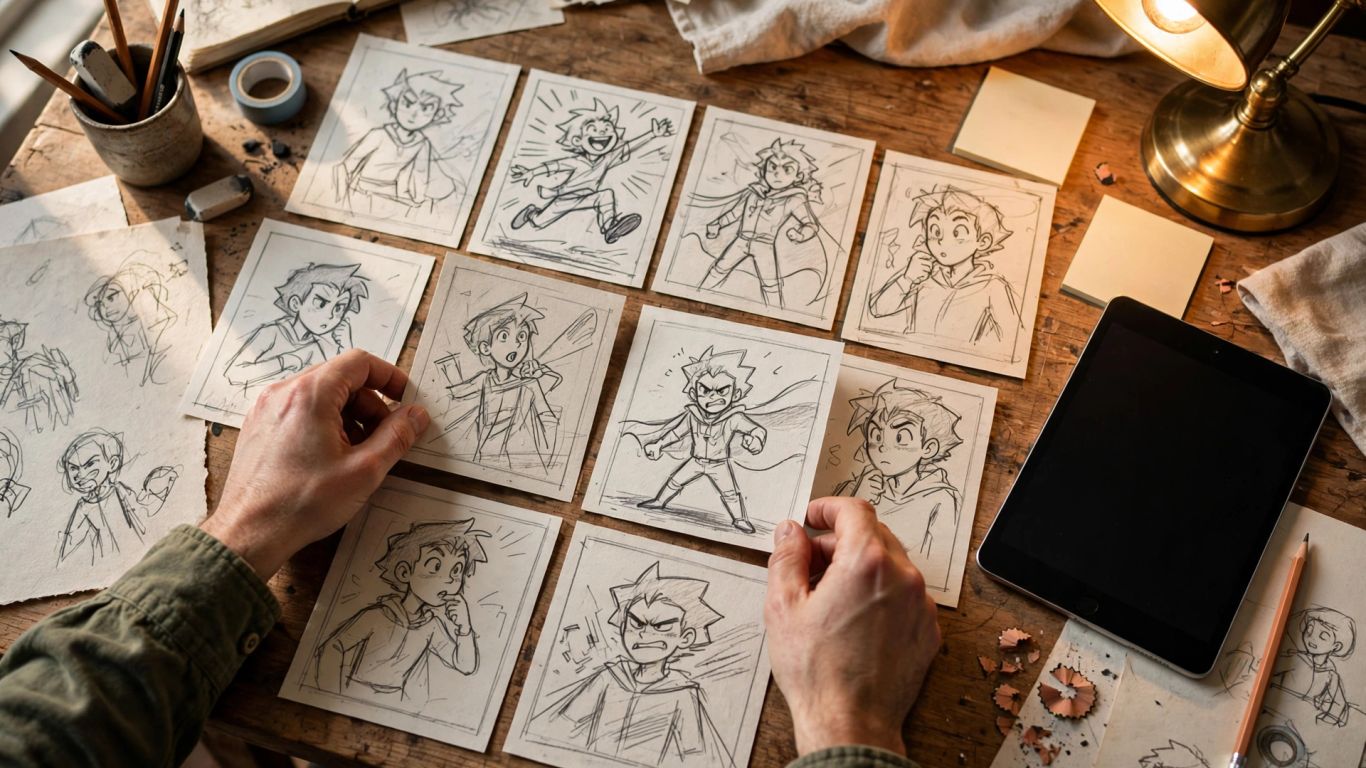
A comic page has limited space, so each panel needs a reason to be there. A reader should be able to follow the action even before reading every line of dialogue. Start with the simplest version of the story, then decide which moments deserve a visual pause and which can be implied between panels.
Define the premise, characters, and intended audience
Write the premise in one sentence, then name the central character’s goal and the obstacle in the way. Decide who the comic is for and what tone you want, since those choices affect pacing, humor, and how much explanation a scene needs. A compact planning note can keep the first draft focused:
- The main character and what they want
- The obstacle or question driving the scene
- The intended reader and overall tone
- The change or reveal at the end
These notes do not need to become part of the finished comic. They are a quick reference for keeping later panels aligned with the story’s central idea.
Break the story into scenes with clear visual beats
Move from premise to a short sequence of scenes, each with a visible change. A character enters, notices something, makes a choice, or reacts to a consequence; those are all beats a reader can recognize in a panel. If a scene contains several changes, split it into smaller moments rather than asking one image to explain everything.
A simple sequence might begin with an establishing view, move closer as the character finds a clue, and end on a reaction. Varying distance and point of view gives the page rhythm without making the action hard to track. Keep transitions clear enough that a reader understands where the next panel begins.
Plan dialogue and captions to fit each panel
Dialogue should sound like something a character would say in that moment, not a summary of what the picture already shows. Keep captions for information the artwork cannot communicate easily, such as a time jump or a detail from the character’s thoughts. Short lines leave room for facial expression and action, and they are easier to letter cleanly.
Read the page aloud once the dialogue is drafted. If a line feels crowded or slows the action, trim it or move the information to another panel. The art and words should share the work, not compete for the reader’s attention.
Design consistent characters and visual styles
Readers recognize characters through repeated visual cues, not only through names or dialogue. A stable design makes a sequence feel like one story even when the character changes pose, angle, or location. Set a small number of visual rules early, then use them as a reference while generating and revising panels.
Create character descriptions with recognizable details
Describe details that remain visible across different scenes: hairstyle, clothing shape, color, accessories, and a distinctive feature or posture. Keep the description concrete and selective. A long inventory of minor details can crowd out the traits that actually make the character recognizable.
It helps to separate fixed traits from scene-specific ones. A coat or hairstyle might stay the same, while expression, pose, and clothing condition change with the action. That distinction gives you room to show emotion without accidentally redesigning the character in every panel.
Set a visual direction for color, lighting, and composition
Choose a visual direction before writing prompts for the whole page. Decide whether the story uses muted or saturated colors, soft or hard lighting, and mostly wide views or close framing. Those decisions give separate images a shared visual mood, even when the subject or background changes.
Composition also guides attention. Place the important action where the eye can find it quickly, and leave enough open space for lettering if speech balloons will be added later. Repeating a palette or lighting pattern can help a scene feel unified without making every panel look identical.
Use reference images to keep characters consistent
When a tool accepts references, provide a clear image that shows the character’s key features without clutter. Use a similar reference across panels, and spell out which details should remain fixed. References are a guide rather than a substitute for a written prompt: describe the new pose, expression, and setting separately.
Review each generated result against the original design before continuing. If a defining feature shifts, correct it early, before the altered version becomes the basis for later panels. Small checks between scenes often save more time than repairing a whole page at the end.
Write prompts for clear, expressive panels
A prompt works best when it tells the image model what matters most and keeps secondary detail under control. Start with the moment the reader needs to see, then add the setting and visual direction. Specific visual cues make it easier to judge whether a result matches the scene, instead of relying on vague instructions such as “make it dramatic.”
Describe the subject, setting, action, and camera angle
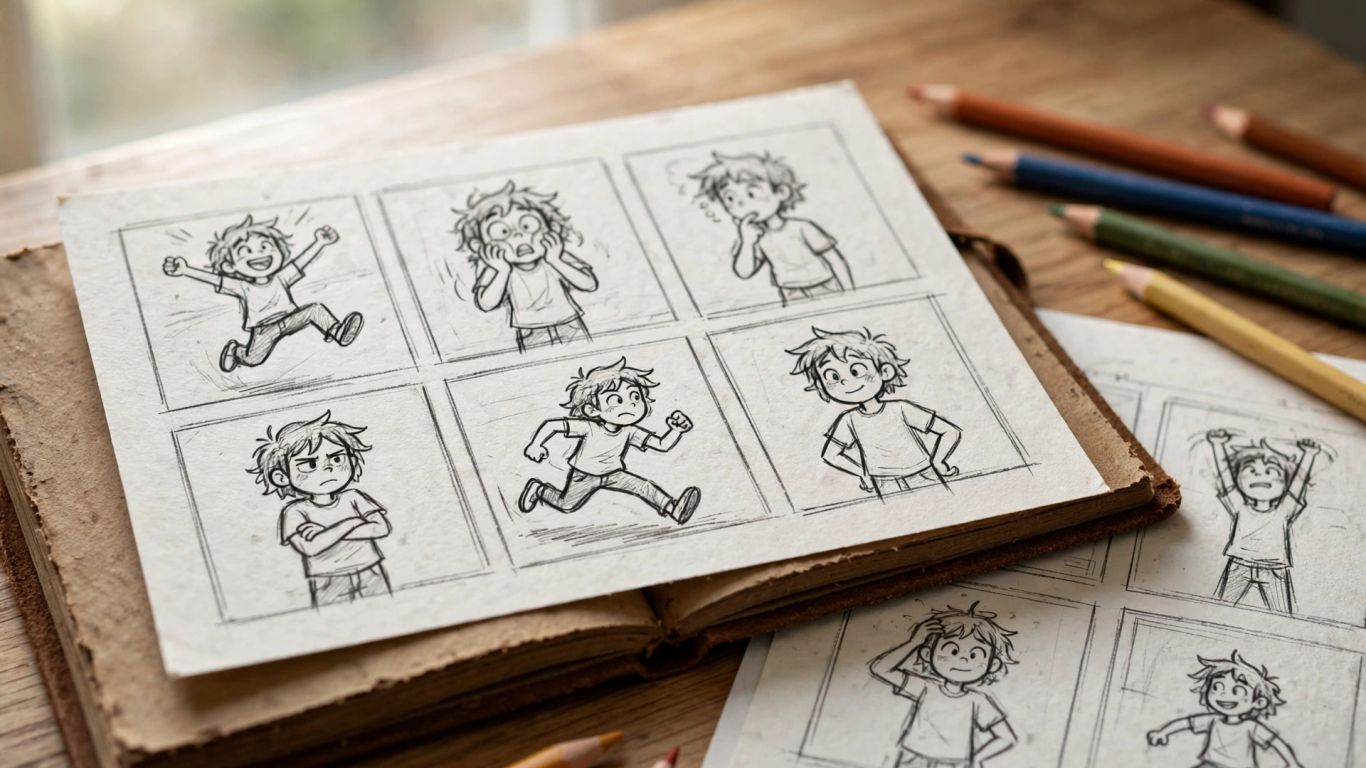
Put the main subject and action near the beginning of the prompt. Then describe where the scene takes place, what the character is doing, and how the viewer sees it. A prompt for a tense discovery might specify a character crouched beside a desk, one hand reaching toward a hidden object, viewed from a low angle in a dim room.
Name only the details that affect the image. If the background is not central, keep it simple so the model has less opportunity to distract from the action. When a result misses the point, clarify the action or viewpoint before adding more decorative language.
Specify panel layout and important visual details
For a multi-panel page, state what happens in each panel in sequence and keep the panel descriptions distinct. Identify which moment is wide, which is close, and where the reader’s attention should land. If you plan to add lettering later, specify clear space for speech balloons rather than asking the image model to handle long dialogue.
A useful prompt can be concise while still naming the important visual details. Describe expressions, gestures, objects needed for the plot, and any features that must remain consistent. Then check that the directions do not contradict each other, such as asking for both a distant view and a close facial expression in the same frame.
Refine prompts when poses, text, or backgrounds miss the mark
Treat the first image as a draft. Identify the main mismatch, change the part of the prompt connected to it, and generate again. If the pose is unclear, name the body position; if the setting overwhelms the subject, reduce background detail. Changing one problem at a time makes it easier to see which instruction helped.
Generated lettering can be unreliable, so many creators add dialogue and captions in a separate editor. Check hands, faces, and story-critical objects as well, since a small visual error can confuse the scene. Keep a record of prompts that produce useful results, but adjust them when the panel’s action changes.
Turn finished comic artwork into animated scenes
Animation can give a still panel a little more presence, but not every image needs to move. Choose a moment where motion adds information or mood: a glance, wind through fabric, or a gradual camera move across a scene. Keep the original artwork’s identity at the center, and use movement sparingly enough that the audience still reads it as the same moment.
Choose image-to-video for animating a still panel
Image-to-video is a practical option when you already have a finished panel and want to make a short moving scene from it. Animator Hub supports image-to-video by letting users upload a still image and describe the motion they want; its listed durations are 5, 10, or 15 seconds. A panel can serve as the visual starting point, while the prompt describes the movement to apply.
Before generating, decide what should move and what should stay still. A clear prompt might ask for a slow camera push and a slight change in expression, while keeping the character’s clothing and the room unchanged. That restraint helps preserve the composition that made the panel work in the first place.
Add subtle movement without changing the scene’s identity
Keep movement tied to the moment already shown. Small shifts in expression, a gentle turn of the head, or environmental motion can be enough to make a still frame feel alive. Large actions may introduce objects or poses that were never present in the panel, so they can pull the scene away from the original drawing.
Use prompts that separate motion from fixed details. Specify the movement, then restate the character, setting, and composition that should remain stable. Review the result for changes in face, clothing, or background before using it as part of a larger sequence.
Use multi-shot sequences to connect moments in a story
When a scene needs more than one view, plan how each shot leads into the next. A wide view can establish location, a closer view can show a reaction, and a final shot can reveal the consequence. Keep the sequence focused on one short change so it feels connected rather than like unrelated clips placed together.
Animator Hub offers a multi-shot narrative mode for longer cinematic sequences. You can plan the order of the moments and use timestamps to describe when each shot belongs. A simple progression is often easier to follow than a string of dramatic changes, especially when the sequence starts from comic artwork with a fixed visual style.
Review, organize, and share your comic project
A comic can look polished panel by panel and still feel confusing as a whole. Review the page in reading order, check that character details remain stable, and make sure dialogue does not crowd the action. Then organize source images, revisions, and final exports so the next edit does not become a search through loose files.
Check continuity, readability, and visual flow
Read the page from a distance, then inspect each panel closely. At page scale, check whether the sequence is easy to follow and whether the eye moves naturally from one moment to the next. At panel scale, look for expression, pose, lettering space, and any object that needs to match an earlier scene.
A final pass can focus on a few practical checks:
- Character clothing, colors, and defining features remain consistent.
- Panel order makes the action clear without extra explanation.
- Dialogue and captions fit without covering important details.
- Cropping and contrast keep the artwork legible at its intended size.
If one panel interrupts the flow, compare it with the beat before and after it. Often a small change to framing, wording, or panel order is enough to make the page read more smoothly.
Save versions and group assets into albums
Keep working files separate from approved exports, and use version names that tell you what changed. Save the prompt or notes alongside an image when they will help you reproduce its look. For video, Animator Hub provides a personal video library with albums, bulk actions, and options to download or regenerate eligible videos.
A simple naming system makes it easier to find the right asset later. Group related material by scene or project, and keep alternate versions until you know which one belongs in the final sequence. Regularly remove duplicates from active folders, but retain source files that may be useful for revisions.
Choose private or public sharing based on your goals
Before sharing, decide whether the project is intended for a collaborator, a small audience, or public viewing. Check that you have permission to share any reference material and that the export contains no private notes or unfinished drafts. If you are sharing a work in progress, make clear which parts are still open for edits.
For generated video, Animator Hub lets users toggle a video’s visibility between private and public in its Explore gallery. Review that setting before sharing a link, and download a finished copy when you need a separate file for another platform. A deliberate sharing choice protects unfinished work and keeps the project’s audience under your control.
Conclusion
A strong AI comic project comes from clear story beats, steady visual choices, and prompts that describe the image you actually need. Once the artwork reads well as a page, selected panels can become short animated scenes with movement that supports rather than replaces the original moment. Plan, test, review, and share each piece with a clear purpose.
Frequently Asked Questions
What is an AI comic generator?
An AI comic generator is a tool that uses written instructions or references to help create comic-style artwork, panels, or page sequences. The features vary, so check whether a tool makes individual images, arranged panels, or another kind of output.
Can I make a comic without drawing every panel by hand?
Yes. Image-generation tools can help produce artwork from descriptions, and some comic-focused workflows organize a story into panels. You will still need to review the results, adjust continuity, and add or revise lettering where needed.
How do I keep a character looking consistent across panels?
Write down a short set of defining visual details and reuse them in prompts. If references are supported, use a clear character image and check each new panel against it before moving on.
How many panels should a comic scene have?
There is no fixed number. Use enough panels to make the action and emotional change easy to follow, but split a moment only when the reader needs another visual beat or a change in viewpoint.
Should I add dialogue inside an image prompt?
You can describe the intended dialogue, but generated text may not render accurately. Many creators generate the artwork first and place speech balloons and captions in a separate editor.
How can I animate a still comic panel?
Use an image-to-video workflow that accepts a still image, then describe the motion you want. Keep the movement modest and state which character, setting, and composition details should remain unchanged.
What should I check before sharing a finished comic?
Review the reading order, character continuity, image quality, and lettering. Also check your sharing permissions and remove private notes or drafts from the version you plan to distribute.