Blog › AI image generator from text: how to write prompts and create better visuals
AI image generator from text: how to write prompts and create better visuals
Write clearer prompts with an ai image generator from text, refine visuals, and choose an image-to-video workflow.
Key Takeaways
Good image prompts give a model clear visual direction without burying the idea in detail. A steady, small-step workflow makes it easier to see what is working.
- Name the subject and action before adding scene details.
- Use lighting, framing, color, and style to guide the visual result.
- Change one prompt detail at a time when refining an image.
- Check upload privacy and usage terms before sharing or publishing.
- Choose an image-to-video workflow when the finished image needs motion.
How an AI image generator turns text into visuals
An ai image generator from text takes a written description and uses it as direction for a visual result. The prompt can name what appears, where it is, and how the scene should feel. The model then turns those cues into an image, though the exact result can vary between generations. Knowing which details matter makes it easier to guide the next attempt.
How the model interprets subjects, settings, and actions
A prompt works like a compact scene description. The subject tells the model what to place in the image, the setting gives it a surrounding world, and the action adds a moment to depict. “A fox” leaves many possibilities open; “a red fox stepping through fresh snow in a pine forest” supplies more visual anchors. The model combines those cues, rather than following a human-like storyboard frame by frame.
Why specific descriptions tend to produce clearer results
Specific details reduce guesswork. Naming a subject’s position, the kind of room, or the quality of light gives the model more to work with than general requests such as “beautiful” or “dramatic.” Still, every added phrase competes for attention, so useful detail beats sheer length. A short prompt with a consistent point of view can be clearer than a long string of loosely related adjectives.
How text-to-image differs from image-to-video generation
Text-to-image starts with words and produces a still visual. Image-to-video begins with an existing image and describes how it should move, so the prompt has two jobs: establish what changes and help keep the original scene recognizable. Animator Hub provides video generation from text, still images, or existing video sources, which makes it relevant when the goal is a moving clip rather than a still image. The two workflows share visual vocabulary, but motion direction belongs to the video prompt.
Build a prompt that gives the model direction
A useful prompt does not need to read like a technical brief. Start with the image you want someone to notice, then add only the details that help make that image specific. This order keeps the central idea visible while you describe the surrounding scene. The same approach works whether you are starting from a blank prompt or using a reference-image workflow to guide a creation.
Start with the main subject and what they are doing
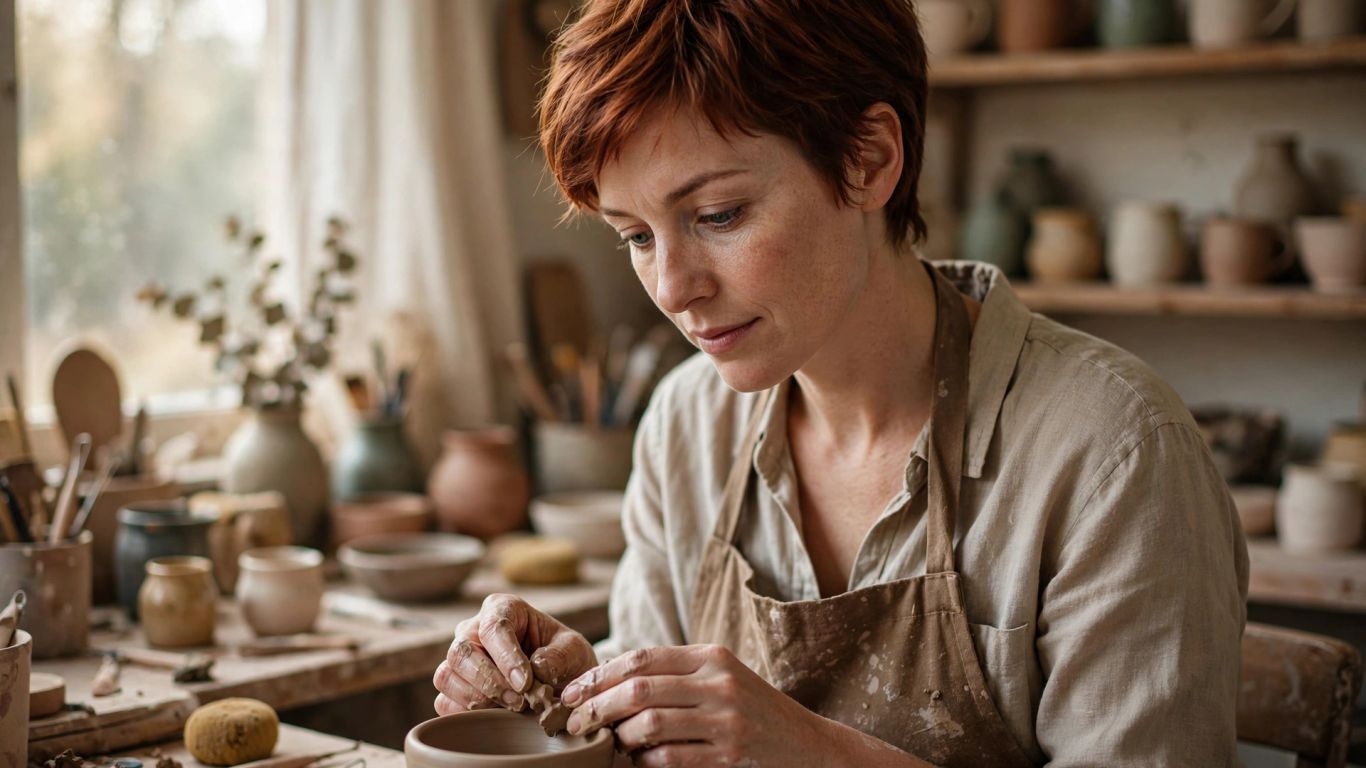
Put the main subject near the beginning of the prompt, followed by a clear action or pose. “A ceramicist shaping a bowl at a workbench” offers a more defined moment than “an artist in a studio.” If there are several subjects, say how they relate to one another, such as standing beside, facing, or reaching toward someone. This helps the model establish a readable scene instead of treating the prompt as a loose collection of objects.
Add setting, lighting, composition, and mood
After the subject and action, add the few scene cues that will change the final image most. A setting, a source of light, and a framing choice can each do useful work without taking over the prompt. The table below shows how these details can build on one simple starting point.
| Prompt element | Example direction | What it clarifies |
|---|---|---|
| Setting | A quiet ceramics studio | Where the scene takes place |
| Lighting | Soft morning light through a side window | The light’s source and quality |
| Composition | Waist-up view, subject to the left | Framing and placement |
| Mood | Calm, focused atmosphere | The emotional tone |
These cues are easiest to use when they agree with one another. A calm morning scene with soft window light has a clear visual direction; adding a crowded nightclub mood would pull the prompt toward a different image.
Specify a visual style, such as realistic or anime
Style is a broad visual instruction, so choose a reference that supports the subject and intended use. “Photographic portrait,” “anime illustration,” and “painterly landscape” point toward different kinds of image-making. You can add one or two supporting traits, such as a muted palette or fine ink lines, but piling up unrelated styles may muddy the result. If the first output misses the feel, change the style phrase while keeping the scene itself steady.
Use negative prompts to describe what to avoid
A negative prompt can name unwanted details, such as extra objects, cluttered backgrounds, or a particular visual artifact. Keep the exclusions concrete and relevant to the image rather than filling the field with every possible flaw. If the tool you are using does not offer a negative-prompt field, state the desired composition positively in the main prompt. For example, ask for a clean, uncluttered background instead of relying on a separate exclusion list.
Shape the look of your generated image
Once the scene is clear, visual choices can shift its character without changing the subject. Camera angle, light, color, and framing help control what the viewer notices first. It is usually more effective to make a small number of deliberate choices than to specify every possible feature. Treat each choice as a tool for supporting the central image, not as decoration added for its own sake.
Choose camera angle, framing, and perspective
Camera language gives the model a useful way to arrange the view. A close-up draws attention to a face or object, while a wide shot makes room for the environment; a low angle can make a figure feel imposing, and an overhead view can clarify a layout. State the subject’s placement when it matters, such as “centered against an open background” or “seen in profile near the right edge.” These instructions often shape the image more directly than adding another string of mood words.
Describe color, time of day, and light quality
Color and light can establish a consistent atmosphere. “Blue dusk with warm light from a nearby window” gives the model a time of day, a palette, and a light source that work together. You can also describe whether the light is soft or hard, even or directional, natural or studio-like. Choose a few linked cues and let them carry the mood rather than asking for several competing palettes at once.
Balance detailed instructions with a focused concept
When a prompt feels crowded, sort its details into the ones that define the image and those that merely embellish it. Keep the subject, action, and strongest visual cue; remove details that do not change what the viewer would notice. A focused concept leaves room for the model to resolve smaller features, while conflicting instructions can pull the result in different directions. If a prompt needs a full paragraph to explain itself, try reducing it to a single visual moment and build from there.
Choose an image-generation workflow
The right workflow depends on what you already have and what you want to finish with. A text prompt is a natural starting point for a new scene, while a reference can help carry visual details into a new result. Character work benefits from a small set of stable identity cues, and video workflows add controls for movement and duration. Before you begin, check that the tool’s inputs and outputs match the project.
Generate an image from a written description
Start with a text prompt when you are working from an idea rather than a finished visual. Describe the subject, action, and setting, then add the style and composition details that matter most. Keep the first version simple enough that you can tell which instructions shaped the result. When the image is close but not quite right, a targeted revision is easier to assess than rewriting the entire prompt.
Use a reference image when the tool supports uploads
A reference image can provide visual information that is awkward to describe in words, such as a particular color arrangement, garment, or composition. Before uploading, check what file types the tool accepts and how it handles stored images. Be clear about what the reference should guide: the subject’s appearance, the framing, or another specific feature. A reference is useful direction, but it does not guarantee an exact copy of every detail.
Create a character by defining appearance and identity details
For a recurring character, decide which traits should stay recognizable across images. A concise description might include hair, clothing, age-appropriate appearance, and one or two distinctive features, alongside the character’s setting or pose. Keep those identity details consistent and vary the scene around them. If the tool supports image references, a suitable image may offer another way to guide appearance, subject to its upload and privacy rules.
Check whether the tool creates still images, videos, or both
A tool’s name or interface does not always tell you which output it supports, so check before building a workflow around it. Animator Hub has Text-to-Video, Image-to-Video, and Video-to-Video generation modes; those are video workflows, not a claim that it generates standalone still images. This distinction matters when you need a fixed image, a moving clip, or a video transformed from existing footage. Match the tool to the deliverable before spending time refining the prompt.
Refine results with a practical prompt workflow
Prompt refinement is easier when each generation gives you a clear lesson. Keep a record of the starting prompt, review the output against the goal, and adjust the smallest useful part. This gives you a way to distinguish an effective instruction from a lucky variation. Over time, the process becomes less about guessing and more about repeatable choices.
Begin with a simple prompt and review the first output
Write a plain description with the subject, action, and setting, then generate an initial result. Review it against a few questions: Is the subject right? Does the scene read clearly? Is the composition close to what you intended? The first output is a reference point, not a verdict on the idea. Notice what already works before changing anything.
Change one detail at a time to identify what helps
When several instructions change at once, it becomes difficult to tell which one improved the result. A short sequence of controlled edits keeps the comparison useful:
- Adjust the framing while leaving the subject and setting unchanged.
- Change the lighting description without altering the style.
- Test a different color palette while keeping the composition steady.
- Revise the action only if the pose or movement is unclear.
After each change, compare the new image with the first output and keep the edits that move it closer to the goal. If the result gets less coherent, return to the previous version and test a different detail.
Rework vague or conflicting instructions
Words such as “cool,” “epic,” or “interesting” can mean many things, so replace them with visible cues: a low camera angle, a storm-dark sky, or a bright rim of light. Look for instructions that compete, too. “Minimal, crowded, empty, and full of detail” does not describe one consistent scene. Rewriting those phrases as concrete visual choices gives the model a clearer set of directions.
Save useful prompts and compare variations
Keep prompts that produce a strong starting point, along with any changes that improved them. A simple note about the intended output and the details you tested is enough to make the work easier to repeat. Compare variations side by side when possible, and judge them against the same goal rather than choosing only the most surprising result. This creates a practical reference for future sessions without making every prompt longer.
Consider privacy, rights, and responsible use
An image may contain personal, client, or unpublished material, so consider what you share before a prompt or upload leaves your device. Rules can differ by service and by location, and the permissions you have for a source image may limit what you can do with it. Read the applicable privacy policy, terms, and content rules before uploading or publishing. A few minutes of checking can prevent a creative workflow from becoming a rights or privacy problem.
Review how the tool stores prompts and uploaded images
Look for clear information about whether prompts and files are retained, who can access them, and whether they may be used to improve a service. Check account settings as well as the privacy policy, since controls can vary. Avoid including personal information or confidential project material unless you understand the service’s handling practices. If the terms do not answer a question that matters to you, do not assume the answer.
Use images you own or have permission to upload
Before using a reference, check whether you created it or have the rights and permission needed for that use. This matters for photographs, commissioned work, client assets, and images of identifiable people. A picture being available online does not automatically mean it is available for any purpose. When permission is uncertain, choose a source you control or ask the rights holder first.
Follow age requirements and platform content rules
Check the age limits and content policy for the specific tool you plan to use. Do not upload or generate material involving minors in sexual contexts, and respect restrictions that apply to sensitive or explicit content. Rules can differ between services, even when their interfaces look similar. Make sure everyone represented in an image is an adult and that the use is lawful and consensual.
Check usage terms before publishing or commercializing results
Read the terms that apply to your account and intended use before sharing an image publicly or using it in paid work. Check for limits on commercial use, attribution, or redistribution, and consider whether rights in the source material also apply to the result. If a client or platform has its own rules, review those too. Keep a record of the relevant permissions and terms when the work is part of a professional project.
Turn a finished image into a moving scene
A still image can become a starting point for a short clip when the next step is motion. The key is to keep the visual description and the movement instruction distinct, so the model knows what should remain and what should change. Duration and aspect ratio also affect whether a clip fits its intended placement. Animator Hub is one option for animating an uploaded still image through an image-to-video workflow.
Select an image-to-video tool when motion is the goal
If you want a still image to move, choose a tool that explicitly supports image-to-video generation. Check how it treats the source image and what controls it offers for the clip. Animator Hub supports uploading a still image and animating it into a moving video clip. That is different from asking a text-to-image tool for another still image, even when both workflows begin with visual ideas.
Describe movement separately from the image’s visual details
The source image already provides the starting appearance, so use the prompt to describe motion and scene changes. You might request a slow camera push, a breeze moving fabric, or a subject turning toward the light. Avoid restating every static detail unless it helps preserve the scene. Animator Hub’s image-to-video mode uses the uploaded image and a prompt describing the desired movement and scene dynamics.
Set duration and aspect ratio to fit the intended use
Decide where the clip will appear before selecting its format. A vertical frame suits some phone-first placements, while a wider frame can suit a landscape player; a square format may be a better fit for other layouts. Keep the duration appropriate to the moment, since a simple gesture may not need a long clip. Animator Hub offers image-to-video durations of 5, 10, or 15 seconds and multiple aspect ratios, with 1080p output.
Use Animator Hub to animate an uploaded still image
For an existing image, the practical sequence is straightforward: upload the still, describe the movement, choose the available duration and aspect ratio, then review the result. Animator Hub’s image-to-video mode accepts PNG, JPG, and WEBP still images and generates a moving video clip from the upload and prompt. Think of the prompt as direction for the moment, not a replacement for the image’s visual content. If motion misses the intended feel, adjust one movement cue and try again.
Conclusion
A strong image prompt starts with a clear subject and builds outward through scene, light, framing, and style. Keep the direction focused, refine one detail at a time, and check privacy and usage terms before sharing your source material or results. When a finished still needs motion, switch to an image-to-video workflow and describe the movement as its own part of the brief.
Frequently Asked Questions
What should I include in a text-to-image prompt?
Begin with the main subject and action, then add a setting and a few visual details such as lighting, framing, mood, or style. Choose details that support the same scene.
How long should an image prompt be?
There is no fixed ideal length. A concise prompt with specific, compatible instructions is often easier to refine than a long prompt containing repeated or conflicting ideas.
Can a text prompt control image composition?
A prompt can describe framing, camera angle, subject placement, and perspective. These directions can guide the composition, although results may vary from one generation to another.
What is a negative prompt?
A negative prompt is an optional instruction describing elements or qualities to avoid. Use it for specific exclusions, and check whether the image tool you use includes that feature.
When should I use a reference image?
A reference can help guide details that are hard to describe, such as a particular appearance, color arrangement, or composition. Check the tool’s upload rules and use only images you have permission to share.
How can I make a character look consistent across images?
Keep a short set of defining appearance details the same in each prompt, and vary the pose, setting, or lighting around them. If supported, a reference image may provide additional visual guidance.
What is the difference between image-to-image and image-to-video?
Image-to-image uses an existing image as input for another still image, while image-to-video uses a still as the basis for a moving clip. The available controls and results depend on the tool.