Blog › Text to video AI: A practical guide to creating cinematic clips
Text to video AI: A practical guide to creating cinematic clips
Learn how text to video ai works, write clearer prompts, choose settings, and refine short generated clips.
Key Takeaways
A clear idea and a few deliberate choices can make text-to-video generation easier to direct. Treat the first clip as a draft, then refine what matters most.
- Describe one main subject, an action, and a setting.
- Include visual details that affect the scene, such as light and camera movement.
- Choose framing and duration for the place the clip will appear.
- Use text-to-video for a new scene and image-to-video when you want to animate a still.
- Review versions, adjust one detail at a time, and keep useful clips organized.
What text to video AI can do
Text to video AI turns a written description into a moving clip. You provide a scene idea, and a video model uses the prompt to generate imagery and motion that fit it. The result is best treated as a starting point: a short visual interpretation, not a finished film with every detail under your control. Animator Hub provides Text-to-Video, Image-to-Video, and Video-to-Video generation modes.
How a written prompt becomes a moving scene
A prompt gives the model a set of visual instructions: what is present, what happens, and how the scene should look. More specific details can guide choices such as lighting, camera movement, and style, though a prompt cannot guarantee that every element will appear exactly as described. Start with the action and the setting, then add details that help define the mood.
What to expect from short AI-generated clips
A short clip can establish a moment or a visual beat, but it may not support a complicated story with several characters and scene changes. Motion and fine details can also vary between generations. For a dependable result, keep the central action simple and review the whole clip rather than judging only its opening frame.
When to use text-to-video instead of image-to-video
Text-to-video is a natural choice when you want to describe a scene from scratch. Image-to-video starts with a still image that provides a visual reference, which can be useful when you already have artwork or a photo you want to animate. Animator Hub supports both modes, so the choice comes down to whether you want the prompt alone to establish the starting scene or want an existing image to guide it.
Common strengths and limitations of AI video generation
A written prompt makes it quick to test different visual directions without filming a scene first. At the same time, the model may interpret ambiguous language differently than you intend, and consistency across a longer sequence can take more work. For a script-led format that includes narration, captions, and visuals, a script-to-video workflow may be a closer fit than a short prompt-generated scene.
How to create a video from text
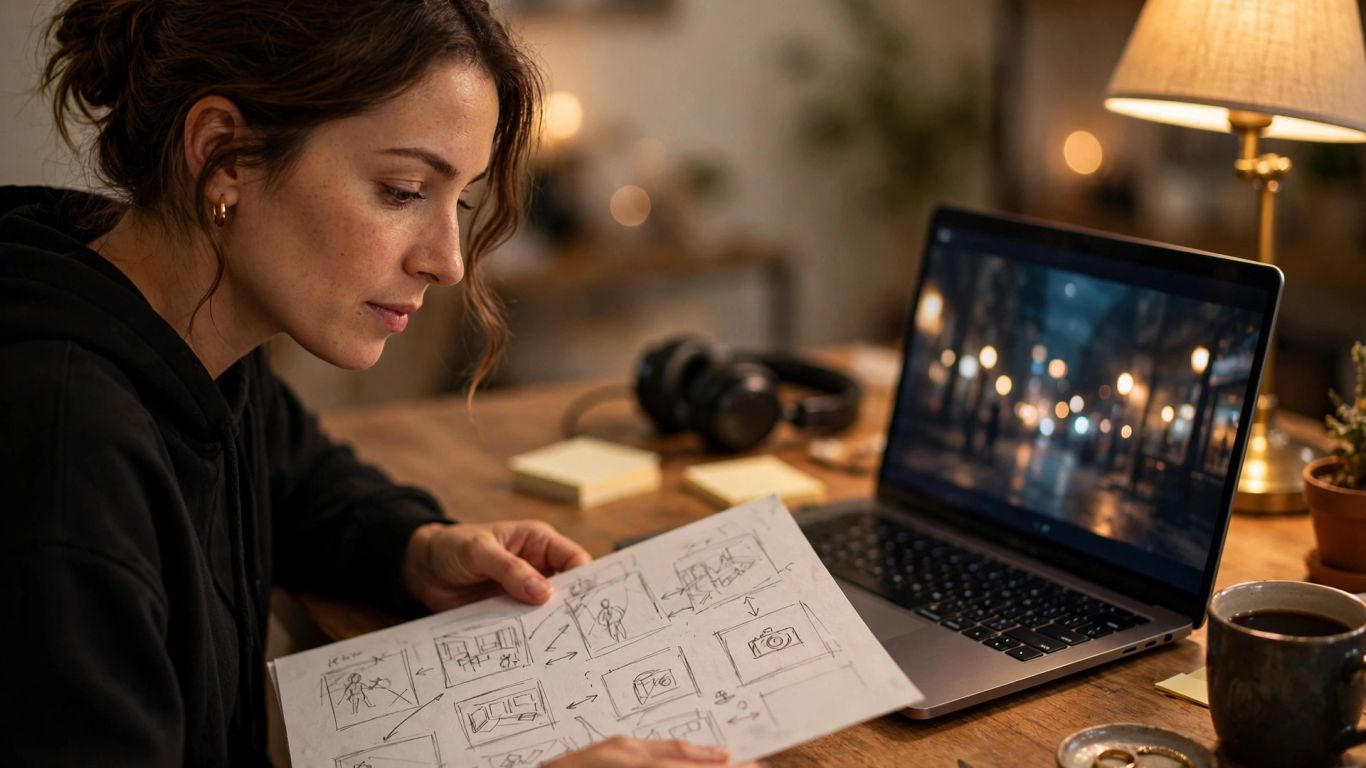
Begin with the purpose of the clip, not a long list of visual flourishes. Decide what the viewer should notice and where the video will be used. Then describe a single scene in language that is concrete enough to guide the model. A first generation gives you something specific to assess and improve.
Start with a clear scene idea and intended use
A strong starting point is one clear sentence about the moment you want to show. Think about whether the clip is meant to set a mood, introduce a character, or provide a brief visual for a larger project. That purpose helps you decide which details deserve space in the prompt and which can wait for another version.
Describe the subject, setting, action, and mood
Give the model a subject, a place, and an action it can depict. Mood can come through in the lighting, color, pace, or atmosphere rather than through a string of abstract adjectives. A practical prompt can be built from four ingredients:
- Subject: who or what the viewer sees.
- Setting: where the scene takes place.
- Action: what changes or moves during the clip.
- Mood: the visual feeling you want, supported by concrete details.
This structure keeps the central idea easy to follow while leaving room for a few distinctive touches. If the scene feels crowded, remove secondary actions before adding more description.
Choose a duration and aspect ratio for your destination
The intended platform can shape the composition before generation begins. A wide frame suits many landscape placements, while a vertical frame uses more of a phone screen; square framing can fit a more compact feed layout. Animator Hub offers 16:9, 9:16, 1:1, 4:3, and 3:4 ratios, with text-to-video durations of 5, 10, or 15 seconds.
Generate a first version and review the result
A first generation is a test of whether the prompt communicates the scene clearly. Watch the clip from beginning to end and note whether the subject, action, framing, and mood are close to your intention. Separate a prompt issue from a generation variation: if the scene itself is unclear, revise the wording; if one detail is off, adjust only that detail next.
How to write stronger video prompts
A useful prompt is specific without becoming a pile of instructions. Put the most important visual information first, then add details that support it. The goal is not maximum length; it is a clear hierarchy, so the subject and action remain easy to understand. Small revisions often teach you more than rewriting everything at once.
Use a simple subject-action-setting structure
A concise subject-action-setting sequence gives the scene a readable center. For example, name the subject, describe one visible action, and place it in a particular environment. Then add one or two details that distinguish the scene. This keeps the prompt focused and makes it easier to see which element may need adjustment if the result misses the mark.
Add lighting, camera movement, and visual style
Once the scene itself is clear, specify how it should be seen. Lighting can set time and atmosphere, while camera movement can influence the clip's sense of pace. A visual style can help unify those choices. Animator Hub accepts detailed prompts that include subjects, environments, lighting, camera movement, and style, so these details can be stated directly when they matter to your scene.
Specify timing and progression for multi-shot scenes
If the idea needs more than one beat, make the progression explicit instead of relying on a dense paragraph. Describe what happens first, what follows, and how the clip ends. Animator Hub's multi-shot narrative mode lets creators break a longer video into numbered shots with timestamps. A simple progression can make the sequence easier to direct without overloading every shot with separate actions.
Use negative prompts to reduce unwanted details
A negative prompt names elements you want the generation to avoid. It can help clarify a boundary when a common artifact or unwanted visual detail distracts from the scene. Keep exclusions relevant rather than adding a long inventory of things unrelated to the prompt. Animator Hub includes an optional negative-prompt field and a tool that suggests exclusions based on the main prompt and uploaded reference media.
How to choose generation settings
Settings affect how a prompt is framed and delivered, so choose them with the final use in mind. Start with aspect ratio and duration, then decide whether the idea needs one continuous view or several timed shots. These choices are easier to make before generation than after a clip has been built around the wrong format. The preview and result should be judged in the context where you plan to use them.
Match landscape, portrait, or square framing to the platform
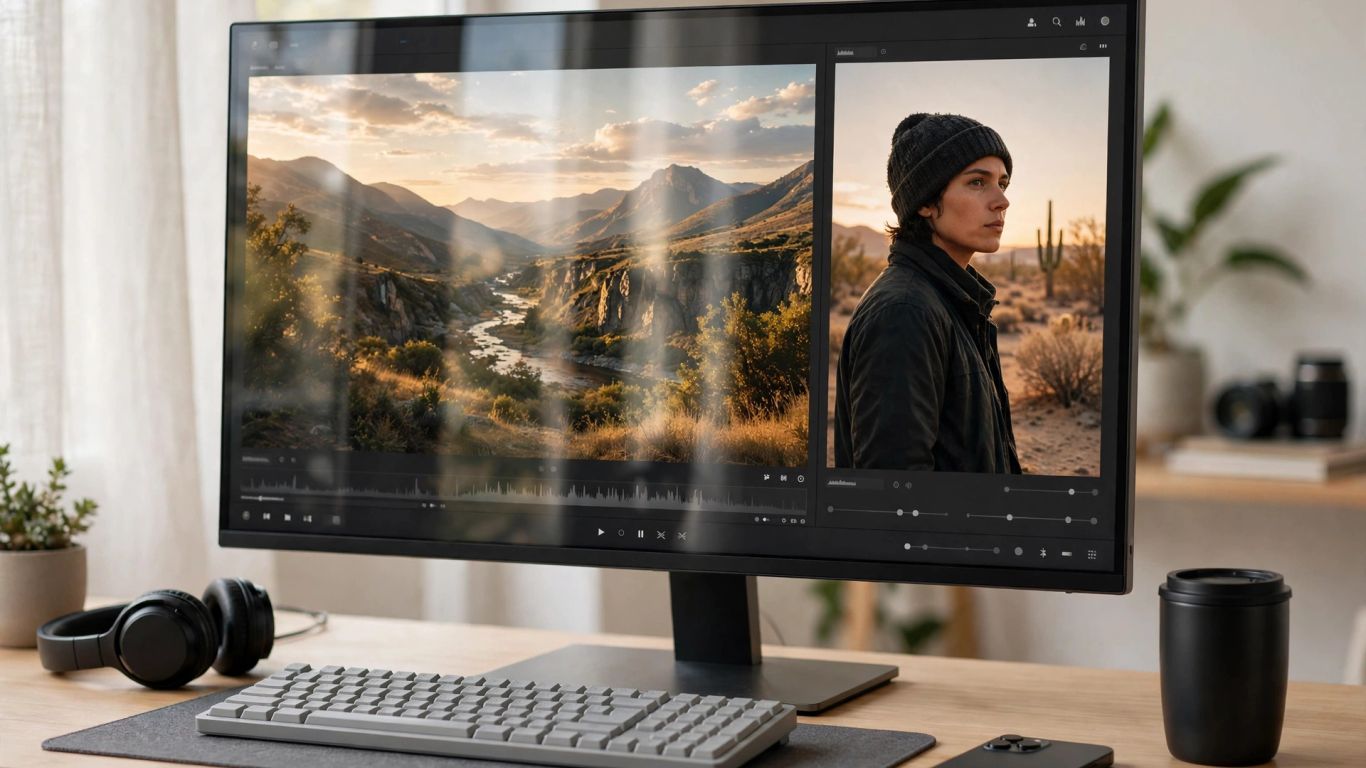
Framing changes which parts of a scene stay visible. A wide composition can accommodate more horizontal context; portrait framing gives greater vertical space; square framing keeps the image balanced in both directions. Use the table as a practical starting point, then consider whether the main subject will remain easy to see after the clip is placed in its destination.
| Frame | Common fit | Prompt consideration |
|---|---|---|
| Landscape (16:9) | Wide screens and landscape placements | Leave room around the subject for the horizontal view. |
| Portrait (9:16) | Vertical phone-first placements | Keep the key action within the central vertical area. |
| Square (1:1) | Compact, balanced feed placements | Keep important details legible near the center. |
These are composition cues, not strict rules. If the scene depends on a wide environment, a vertical crop may hide useful context, so adjust the prompt or framing before spending time on repeated generations.
Decide between a single shot and a multi-shot narrative
A single shot is often the clearer choice for one action or a brief visual moment. A multi-shot narrative can help when the clip needs a sequence of beats with a defined order. Consider whether the story truly needs a change in shot; adding cuts without a purpose can make a short clip harder to follow. A simple scene may be stronger as one continuous view.
Use prompt expansion or enhancement to develop rough ideas
A rough prompt can be a useful starting point if you already know the main subject and action. Animator Hub provides prompt enhancement and an optional prompt expansion toggle that enriches short prompts before generation. Review the resulting wording for accuracy before running it, especially if the original idea depends on a particular action or visual detail.
Set realistic expectations for resolution and clip length
Check the available duration and output resolution before planning a sequence around them. Animator Hub lists fixed 1080p resolution and offers text-to-video clips of 5, 10, or 15 seconds. A short duration works best when the scene has one clear purpose; a longer prompt does not automatically create more time for every detail. Plan the clip around the selected length rather than trying to fit a whole story into it.
How to refine and manage generated clips
Refinement is easier when each version has a clear reason for existing. Note what worked, identify the most distracting mismatch, and make a focused change. Keep the useful versions available so you can compare what changed rather than relying on memory. A tidy library also makes it simpler to return to a promising idea later.
Change one prompt detail at a time when iterating
When a clip is close, avoid replacing the whole prompt. Change one detail, such as the camera movement or lighting, and compare the next result with the earlier one. This makes it easier to learn which wording affected the output. If the subject or action is still unclear, revise that core instruction first instead of polishing minor atmosphere details.
Compare versions and regenerate failed or expired jobs
Keep track of which version has the clearest action and which has the most useful framing. A failed result may call for another run, while a weak visual interpretation may need a prompt change. The My Videos page in Animator Hub shows generation status and allows failed or expired jobs to be regenerated with the original prompt and settings prefilled. Reviewing the earlier setup can save time when you want to retry rather than start over.
Download completed videos and organize them into albums
After a clip is complete, save a copy if you need it outside the generation workspace. Group related versions by project or concept so comparisons stay manageable. Animator Hub's private My Videos library supports downloads, albums, and bulk actions. These organizational habits are useful even for a small set of experiments, since names and groupings help distinguish a final pick from a discarded test.
Keep clips private or choose to share them publicly
Before sharing a generated clip, consider whether it is ready for a public audience and whether its contents are appropriate for that setting. Animator Hub lets users toggle a video's visibility between private and public in Explore. Review the selected visibility deliberately, particularly when generating personal or adult material, and make sure the choice matches your intent.
How to evaluate a text to video AI tool
A tool's feature list matters less than how well its workflow fits the project you have in mind. Check the input modes, creative controls, price structure, and rules before you begin. Privacy and age requirements deserve the same attention as output settings, especially when a tool is intended for adult creators. A little checking up front can prevent surprises later.
Compare text, image, and video input options
Consider what you want to provide as the starting point. A text prompt begins with a written scene description; an image input begins with a still reference; a video input begins with existing footage. Animator Hub documents all three modes: Text-to-Video, Image-to-Video, and Video-to-Video. Compare available inputs against your actual workflow rather than assuming every tool supports the same materials or transformations.
Check pricing models and the cost of repeated generations
Look at how a tool charges and estimate the cost of testing more than one prompt version. A pay-as-you-go model and a subscription require different kinds of budgeting, so check the stated pricing details before you generate. Animator Hub documents pay-per-second pricing with no subscription required, and its credit system uses one credit per second of generated video. Repeated attempts can add up, which makes focused prompts and careful review practical habits.
Review privacy, account, and payment requirements
Read the privacy information to understand how access, accounts, and sharing work. Also check what information or payment method is required before you create content. Animator Hub describes an anonymous account model, a private video library, and cryptocurrency payments. These are product-specific details, so confirm the current terms and available options directly before making a decision.
Confirm content rules and age restrictions before creating**
Read the content policy and age requirements before using any generation tool, particularly when your project includes adult material. Animator Hub is for adults aged 18 and over, uses an age-verification gate on the first visit, and prohibits content involving minors, including CSAM. Rules vary between services, so verify the applicable policy and do not create or upload material that violates it.
Conclusion
Good text-to-video work starts with a scene that is easy to describe and improves through deliberate choices. Set the frame and duration for the intended use, keep prompts focused, and judge each version by whether it communicates the moment you wanted. With a thoughtful workflow, short generated clips can become useful building blocks for a larger creative project.
Frequently Asked Questions
What is text to video AI?
Text to video AI is a generation method that uses a written prompt to produce a moving visual clip. The prompt describes the scene, subject, action, and other visual qualities.
How should I start a video prompt?
Start with the main subject, what it does, and where the action takes place. Add mood, lighting, or camera movement only when those details help express the idea.
Is a longer prompt always better?
No. A longer prompt can introduce competing directions. Clear, relevant details usually help more than extra wording that does not affect the scene.
When should I use image-to-video?
Use image-to-video when you have a still image that you want to serve as the visual starting point. Text-to-video is a better fit when you want the written prompt to establish the scene.
How do I choose an aspect ratio?
Choose a ratio based on where the clip will appear and how the subject should fit in the frame. Check that the main action will remain visible in the chosen orientation.
Why can two generations from the same prompt look different?
Generative systems can interpret a prompt with some variation. If one result is closer to your goal, keep its useful details and make a focused adjustment for the next version.
What should I check before using an AI video tool?
Review its supported inputs, output settings, pricing, privacy information, account requirements, and content rules. Confirm age restrictions and any limits that apply to the material you plan to create.