Blog › Text to image AI: how it works and how to create better images
Text to image AI: how it works and how to create better images
Learn how text to image ai works, write clearer prompts, refine results, and choose a tool that fits your project.
Key Takeaways
A clear subject and a few well-chosen visual details give a text-to-image prompt a stronger starting point. Small, deliberate revisions make it easier to see what is working.
- Describe one main subject and a setting.
- Use composition, lighting, and style to guide the look.
- Change one prompt detail at a time when refining results.
- Check images for awkward framing, anatomy, lettering, and other artifacts.
- Choose tools based on their controls, privacy terms, and intended use.
What text to image AI does
Text to image AI turns a written description into a visual result. The system uses patterns learned from training data to connect words with visual features, then generates an image that fits the prompt. Results can vary, even when you reuse the same wording. Understanding the process helps you set realistic expectations and write more useful instructions.
How a written prompt becomes an image
A prompt gives the system clues about what should appear and how the scene should look. Many image models begin with visual noise and gradually refine it into an image guided by those clues. They do not simply look up a matching picture and paste it together; they generate a new result based on learned associations between text and images. A short prompt can work, but more precise descriptions give the model a clearer direction.
Common image styles and formats
A prompt can ask for a photograph-like image, an illustration, a painted scene, or another visual treatment. You can also describe the intended framing, such as a close portrait or a wide view. Different tools offer different size, aspect-ratio, and style controls, so check the available settings instead of assuming every generator works the same way. The table below is a quick way to connect a visual goal with useful prompt language.
| Visual goal | Details to specify | Useful prompt direction |
|---|---|---|
| Portrait | Subject, pose, background | Close-up, relaxed expression, plain studio backdrop |
| Product view | Object, surface, angle | Three-quarter view, soft shadows, uncluttered table |
| Story scene | People or objects, setting | Wide composition, dusk lighting, distant skyline |
| Illustration | Subject, medium, palette | Ink drawing, limited colors, visible paper texture |
Treat these as starting points, not fixed formulas. A simple prompt-to-image example can help you see how a basic description translates into a visual result, but your own subject and intended use should shape the final wording.
Text-to-image versus image-to-video
Text-to-image starts with words and produces a still image. Image-to-video starts with an existing image and generates a moving clip, so the source picture and the motion instructions both affect the result. The two workflows can sit next to each other in a creative process, but they solve different problems. Animator Hub offers an Image-to-Video mode for turning a still image into a moving video clip.
How to write an effective prompt
A useful prompt gives the image model a clear subject, then adds just enough context to shape the result. It does not need to sound technical or read like a long inventory of adjectives. Start with the image you need, then add details that make the scene easier to picture. The goal is a focused instruction, not the longest possible one.
Start with a clear subject and setting
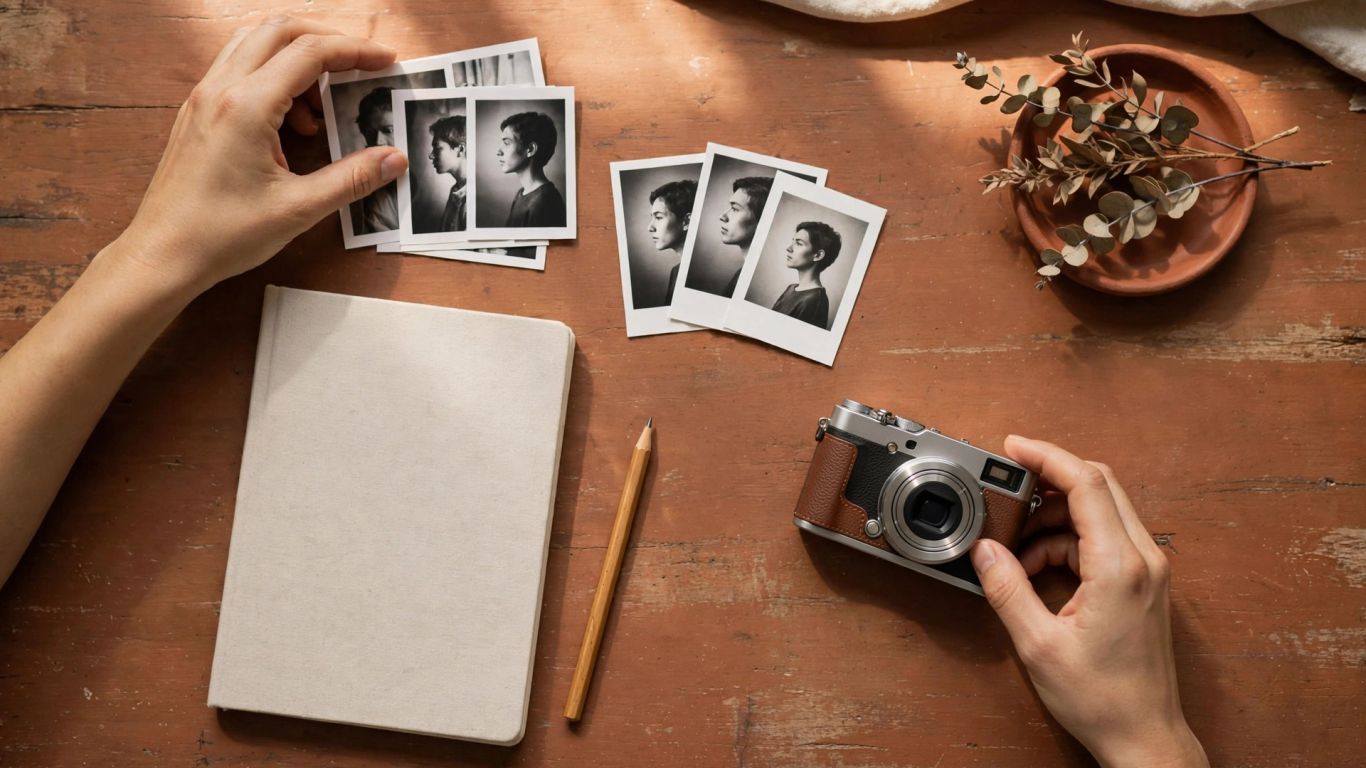
Name the main subject early, and describe where it is. “A red bicycle leaning against a brick wall in a quiet courtyard” gives more direction than “a bicycle scene.” If the subject has a pose, action, or relationship to its surroundings, include that too. A clear subject-setting pair gives the rest of the prompt something solid to build on.
Add composition, lighting, and style
Once the subject is clear, describe where it sits in the frame and the kind of light around it. Style words can further guide the image, but they work best when they support the same visual idea rather than pulling in several directions. For many prompts, a few distinct choices are enough:
- Composition: close-up portrait, overhead view, or wide shot.
- Lighting: soft window light, cloudy daylight, or a single warm lamp.
- Color: muted earth tones, cool blue shadows, or a limited palette.
- Style: editorial photography, watercolor illustration, or clean line art.
Read the choices together before generating. If the subject, setting, and style sound like they belong in different scenes, remove or revise the detail that creates the conflict.
Use specific details without overloading the prompt
Specific details help when they describe visible features, not when they pile on unrelated ideas. A prompt about a ceramic cup might mention its chipped blue glaze, the wooden counter, and the morning light. That gives the model concrete visual cues without making it solve several unrelated scenes at once. A few precise details usually work better than a stream of near-synonyms.
How to refine generated images
The first result is a draft, not a verdict on the prompt. Look at what the image got right before changing the wording, then decide what single issue matters most. This keeps each revision informative: you can tell whether the new instruction helped. If you change many things at once, it becomes harder to understand why the output shifted.
Change one prompt detail at a time
Keep the subject and core scene steady while you adjust one feature, such as the camera angle or lighting. If the image is too dark, revise the lighting description rather than rewriting the entire prompt. This makes comparisons between generations more useful. It also helps you avoid losing details that were already working.
Use negative prompts to reduce unwanted elements
Some image tools accept negative prompts, which tell the system what to avoid. Their effect depends on the tool, and they cannot guarantee that an unwanted feature will disappear. Keep the exclusions focused on problems you can actually see, rather than adding a long list of hypothetical errors. If you are making revisions, a compact set of exclusions may include:
- Unwanted objects or background details.
- A framing issue, such as a cropped head.
- A visual treatment that conflicts with the requested style.
- Extra lettering when the image should contain no text.
Review the next result to see whether the exclusions helped. If they did not, try changing the positive description or adjusting a tool setting instead.
Check composition, anatomy, text, and other artifacts
Look over the whole image before deciding to keep it. Check whether the subject is placed well, limbs and features look plausible, and any lettering is readable or intentionally absent. Small distortions can be easy to miss in a thumbnail, so view the image at a useful size. If the image will be published, also check that the final file suits the layout and use case.
How to choose a text-to-image tool
A good tool is one that fits your intended work, not just one that produces an appealing sample image. Try prompts related to your real projects and compare how well the results follow your instructions. Then look beyond the first generation: editing controls, privacy terms, and allowed uses matter once an image is headed for a client, a campaign, or a public post. Animator Hub provides image-to-video generation, so consider it when your workflow includes animating a still rather than generating a still image from text.
Compare image quality and style options
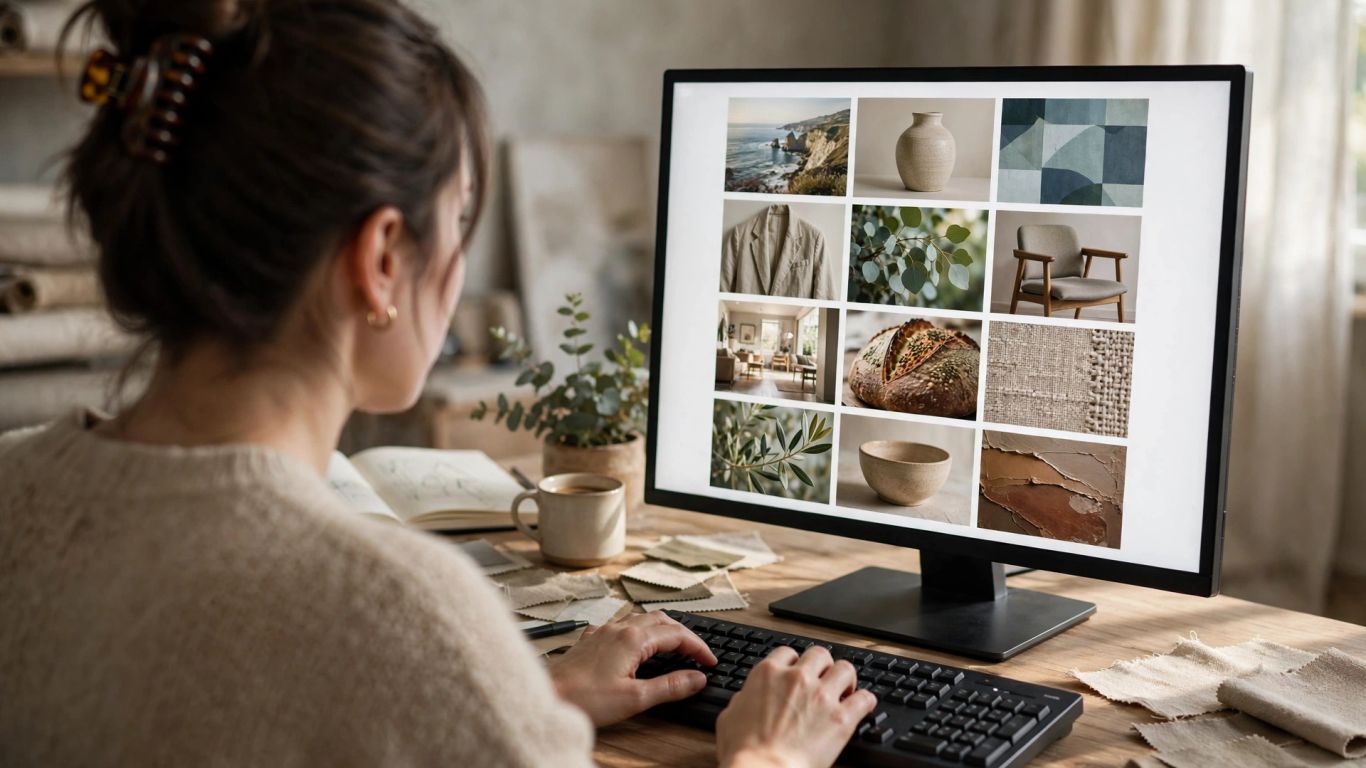
Test more than one subject and prompt style before settling on a tool. A generator that handles portraits well may not fit your product images or illustrated scenes as neatly. Compare detail, consistency, composition, and how closely the results follow your instructions. Keep the prompts similar during a comparison so the differences are easier to judge.
Review editing controls and usage limits
Check whether a tool lets you revise part of an image, adjust size or aspect ratio, or make further versions from an existing result. Read its usage limits too, including any generation caps, credit rules, or export restrictions. These details affect the pace of a project as much as the first image does. Match the controls to the way you expect to work, rather than choosing on a feature list alone.
Check privacy, content rules, and commercial-use terms
Before uploading a reference image or using an output commercially, read the service’s privacy policy and terms. Confirm how uploads and generated files are handled, what content rules apply, and whether the license covers your intended use. Rules can differ by tool and account type, so do not assume that an image is cleared for every purpose just because it can be generated. Save or record the terms that apply when you create work for a client or business.
Where AI-generated images can be useful
Generated images can help you test visual directions before committing time to a finished piece. They are useful as working material when you want to compare moods, compositions, or subject treatments quickly. They still need human review, particularly when accuracy, brand consistency, or a specific production format matters. Think of them as material to evaluate and adapt, not automatic replacements for every final asset.
Create concept art and storyboards
A set of generated images can help a team discuss a scene, character, or visual direction before production. Keep prompts consistent when you want a sequence to feel related, and label drafts clearly so no one mistakes a rough visual for a finished design. For storyboards, prioritize framing and the action in each moment. Details can be refined after the sequence makes sense as a whole.
Make illustrations for marketing and social posts
Images for social posts or marketing can start with a specific format and audience in mind. Describe the subject, the amount of open space for later layout, and the general tone of the campaign. Avoid asking a generator to create important copy inside the image unless you can verify the lettering carefully afterward. A separate design pass can make it easier to keep text accurate and aligned with brand guidelines.
Develop visual references for creative projects
References can help writers, designers, and artists agree on visual qualities before they make a finished piece. A prompt might explore clothing, materials, light, or a setting, then serve as a conversation aid rather than a final specification. Keep track of what each reference is meant to inform. That makes it easier to carry useful ideas forward without treating every generated detail as settled.
How to animate a generated image
Animating a still image adds a new set of choices: what moves, how much it moves, and what should remain stable. A strong source image gives the video tool a clearer visual foundation, while a concise motion instruction can help focus the clip. Results may still change details that you expected to stay fixed. Review the output rather than assuming the source frame will remain untouched.
Prepare an image with a clear subject and composition
Choose an image with a readable focal point and a composition that leaves room for the movement you want. A crowded frame or an unclear subject can make it harder to judge the animation. Consider which elements should move and which should stay still before you start. Animator Hub offers an Image-to-Video mode that accepts a still image and a prompt describing the desired motion.
Add motion instructions in an image-to-video tool
Describe the action in plain, visual terms, such as a slow camera push toward a subject or leaves moving in a light breeze. Keep the instruction centered on a small number of movements, and be clear about the pace or direction when it matters. Animator Hub supports image-to-video generation from a still image with motion described in a prompt. A focused instruction gives you a more useful first clip to review.
Review the clip for unwanted movement or visual changes
Watch the full clip, not only its opening frame. Check whether the camera movement feels right, the subject stays recognizable, and background elements change in distracting ways. If a result misses the mark, adjust the source image or motion description, then generate another version. Animator Hub's documented Image-to-Video mode produces moving video clips from a still image and prompt, so judge the finished clip against the motion you asked for.
Conclusion
Better results come from a clear starting idea, a few deliberate visual choices, and careful review. Write prompts that describe what should be visible, revise one issue at a time, and choose a tool whose controls and terms fit the way you plan to use the image. When a still image is only the beginning, a separate image-to-video workflow can add motion for a new kind of result.
Frequently Asked Questions
What is text to image AI?
Text to image AI is a type of system that uses a written prompt to generate an image. The prompt can describe a subject, setting, style, and other visible details.
How do I write a good image prompt?
Start with the main subject and setting, then add a few details about composition, lighting, and style. Keep the wording focused on the image you want to see.
Do longer prompts create better images?
Not necessarily. Extra detail helps only when it gives the system useful visual direction; unrelated or conflicting instructions can make the result less predictable.
Can AI image generators create text accurately?
Some results may include legible text, but lettering can also be distorted or misspelled. Check it closely and consider adding important copy in a separate design step.
What is a negative prompt?
A negative prompt is an instruction that names elements or qualities you want a tool to avoid. How well it works depends on the image generator and the prompt.
How can I improve an image that is almost right?
Identify the main issue, change one relevant prompt detail, and generate another version. Keeping the rest of the instruction stable makes it easier to judge the revision.
What is the difference between text-to-image and image-to-video?
Text-to-image generates a still image from a written description. Image-to-video starts with a still image and generates a moving clip using the image and motion instructions.