Blog › Anonymous NSFW AI video generation with AnimatorHub: make your fantasies move
Anonymous NSFW AI video generation with AnimatorHub: make your fantasies move
Anonymous NSFW AI video generation- AnimatorHub: choose a mode, write sharper prompts, and keep privacy in view.
Key Takeaways
Adult video creation works best when you choose a mode, make deliberate prompt choices, and review each result before sharing. Privacy and consent belong in the workflow from the start.
- Text, image, and video inputs support different creative starting points.
- Aspect ratio, duration, camera movement, and lighting can shape a clip.
- Specific prompts and negative prompts help communicate what you want.
- Anonymous by design does not mean no sign-in, age check, or account-linked uploads.
- Review costs and visibility settings before generating or sharing a video.
What anonymous NSFW AI video generation means on AnimatorHub
For a search such as “Anonymous NSFW AI video generation- AnimatorHub,” the practical question is what privacy and creative control mean in use. Adult-focused video generation can start with text, a still image, or existing footage. The process still calls for clear boundaries, careful source choices, and an honest view of what an anonymous account does and does not protect.
How the platform handles adult-focused video creation
Animator Hub is an AI-powered video generation platform for adults, with text-to-video, image-to-video, and video-to-video modes. It allows adult content creation and describes its output as cinematic 1080p video. The platform also sets firm limits against content involving minors and child sexual abuse material, so adult creativity does not remove the need to respect those rules.
What “anonymous by design” does, and does not, promise
An anonymous account model means there is no public profile, display name, or avatar identifying you in the public interface. It does not mean that no account information exists: sign-in uses Google, and the account owner can see their email. Treat anonymity as a feature of the public-facing experience, not as a promise that every part of online activity is untraceable.
Why the platform is for adults 18 and older
This is an adults-only service, with an age verification gate on the first visit. Keep every person depicted in a prompt or source image clearly adult, and do not use a real person’s likeness without permission. Those boundaries protect people and keep the creative process within the platform’s stated rules.
Choose how to bring a scene to life
The best starting point depends on what you already have and what you want to change. A written idea offers a blank canvas, while an image or clip gives the model visual material to work from. With Animator Hub, the three generation modes cover those different starting points.
Turn a written scene into video with Text-to-Video
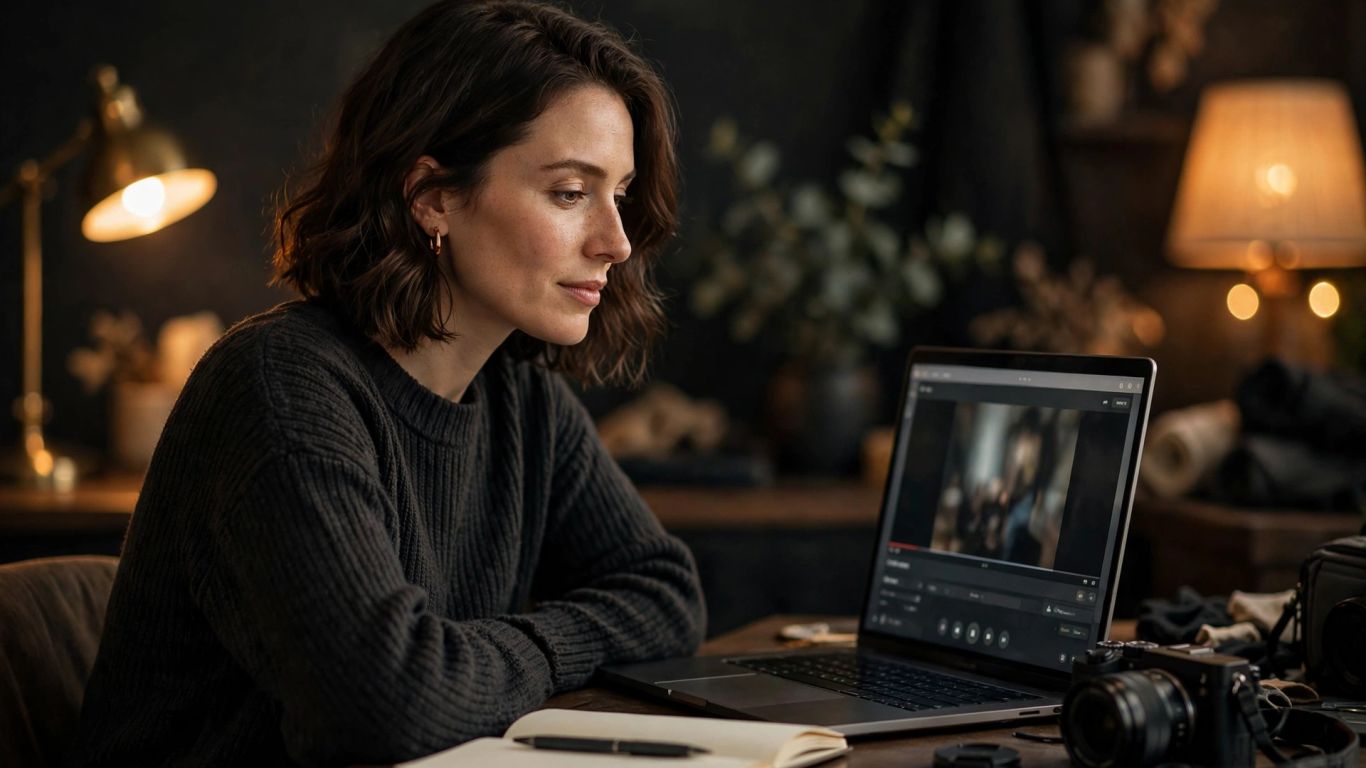
Text-to-Video turns a plain-language scene description into a video. You can describe the subject, environment, lighting, camera movement, and visual style, then choose a duration of 5, 10, or 15 seconds. A few concrete details usually guide a first attempt better than a long string of loosely related adjectives.
Animate a still image with Image-to-Video
Image-to-Video starts with a PNG, JPG, or WEBP still and adds movement guided by your prompt. The model interprets the image and applies motion, expressions, and scene dynamics. This is useful when you already have a visual reference and want to see it move, rather than asking text alone to establish every detail.
Restyle existing footage with Video-to-Video
Video-to-Video accepts up to three source clips in MP4 or MOV format, each between 2 and 30 seconds and no larger than 100 MB. You can use a prompt to transform footage, including changing its style, scene, clothing, or environment. The generated clip can be 5 or 10 seconds, so check the available duration against your intended edit before you begin.
Shape the look, pacing, and mood
A good prompt describes more than the subject. Framing, pace, lighting, and movement all affect how a scene feels. Set the broad choices first, then add visual details that support the mood instead of competing with it.
Set the aspect ratio, duration, and shot type
Choose an aspect ratio that suits the frame you have in mind, then select a duration and shot type for the generation. The available duration depends on the mode: text and image generations offer 5, 10, or 15 seconds, while video-to-video offers 5 or 10 seconds. These simple constraints help you plan a clip that fits its intended use.
Use camera, lighting, and motion details to guide the result
Camera direction gives the scene a point of view. “Slow push-in,” “locked-off close-up,” and “gentle handheld movement” suggest different energy; lighting notes such as “soft window light” or “low-key blue ambience” help establish the mood. Specific visual cues are easier to act on than a pile of broad, overlapping style words.
Plan longer sequences with multi-shot prompts
For a sequence that needs more than one beat, multi-shot narrative mode lets you plan shots with timestamps. Give each shot one clear action and a visual link to the next, such as a shared location or consistent lighting. A sequence feels more coherent when each beat advances the same scene rather than introducing a new idea without warning.
Write prompts that bring the heat
A strong adult scene prompt can be direct without becoming vague. State who is present, where the action happens, what changes, and how the camera sees it. Keep the people depicted clearly adult, and build the desired tone from visual details rather than relying on a single label.
Build a scene from subject, setting, action, and style
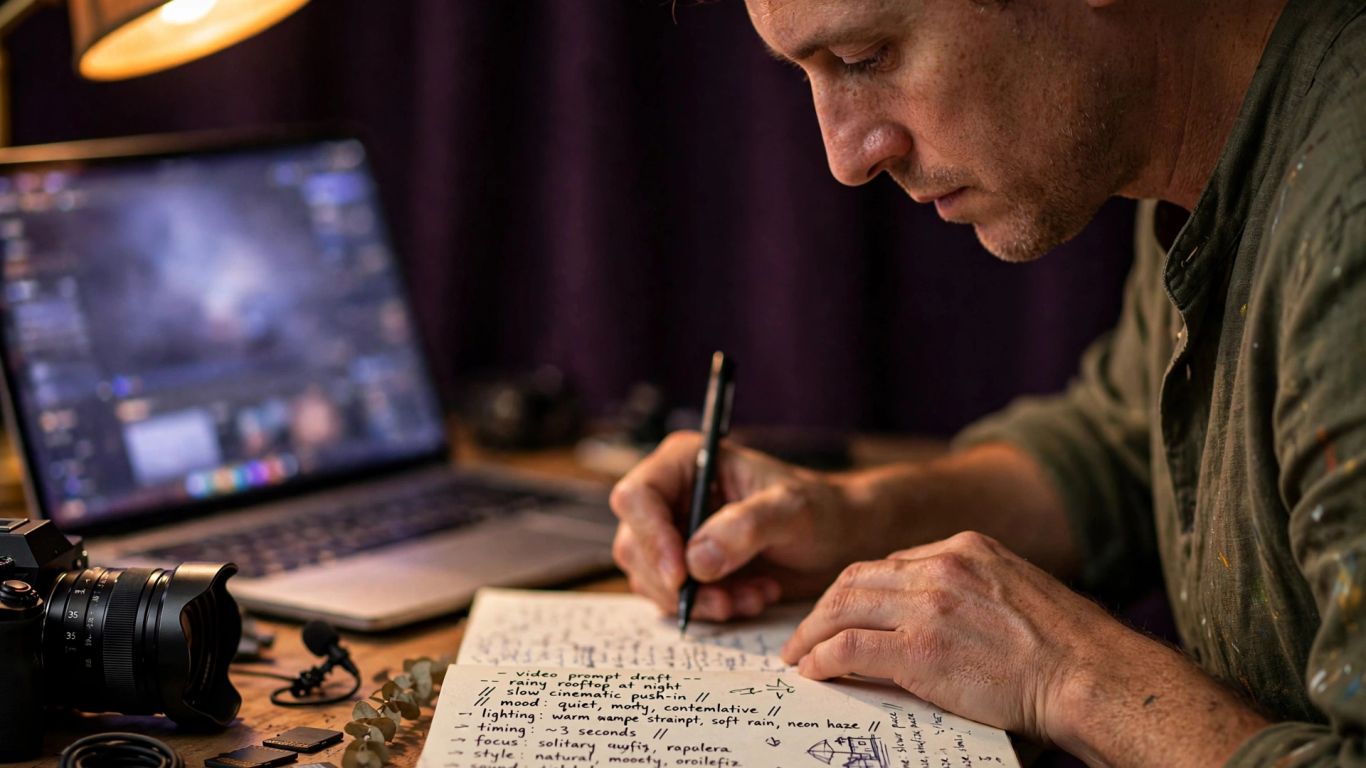
Think of a prompt as a compact scene brief. Name the adult subject, the setting, the action, and the visual treatment, then add camera or lighting details if they matter to the shot. For example, a prompt can specify an adult performer in a private lounge, a slow turn toward camera, warm practical lights, and a close medium shot.
Use prompt enhancement and negative prompts to refine results
When a first draft feels thin, add details that solve a specific problem: unclear framing, an empty background, or motion that feels too fast. Animator Hub includes a prompt enhancer and a negative-prompt generator, which can help refine instructions. A practical order for building a prompt is:
- Identify the adult subject and the scene’s main action.
- Specify the location and a few useful background details.
- Describe the camera framing and movement.
- Add lighting, color, and style cues that fit the mood.
Use the enhancer as a starting point, then review its suggestions against your intent. A negative prompt can flag elements you want to avoid, but clear positive direction still does most of the work.
Keep references and source material consensual and rights-cleared
Only upload images or footage you have the right to use, and make sure any identifiable adult depicted has consented to the intended use. Do not use someone’s likeness to create sexual material without their permission. For a reference, choose artwork you own or material whose license allows the transformation you plan to make.
Keep privacy and spending in view
A private workflow has two sides: understanding what the account exposes and knowing what each generation costs. Read the service’s privacy, terms, and content rules before uploading anything personal. Then set a budget that fits the number of seconds you expect to generate.
Understand account sign-in, age checks, and private uploads
Animator Hub uses Google sign-in and an 18+ age gate on first visit. The account has no public display name or avatar, and the owner’s email is visible only to that account owner in the user menu. Uploaded files are stored privately and tied to the account; that is different from saying they are not stored or that no account data exists.
Compare pay-as-you-go credit packages and payment options
The platform uses pay-as-you-go credits, with one credit equal to one second of generated video and no subscription required. These listed packages make the per-second cost easier to compare:
| Credits | Price | Effective rate |
|---|---|---|
| 100 | $30 | $0.30 per second |
| 500 | $125 | $0.25 per second |
| 1,000 | $200 | $0.20 per second |
Cryptocurrency payments include BTC, ETH, USDT, and more; credit card payments are listed as coming soon. Because the charge depends on generated seconds, estimate a clip’s duration before you start and keep a little room in your balance for another attempt.
Check privacy, terms, and content policies before creating
The Privacy Policy, Terms of Service, and Content Policy are linked from the site footer. Review them before you upload personal material or create a public-facing clip, especially if you plan to use a recognizable likeness. The stated limits include no content involving minors and no child sexual abuse material.
Manage, revisit, and share your videos
Generation is only one part of the workflow. You may need to check a job, return to a result later, or decide whether anyone else should see it. A quick review before sharing helps you keep control of both the video and its visibility.
Track generation status and regenerate failed clips
The video library shows whether a generation is pending, processing, completed, failed, or expired. In-progress videos refresh automatically, and a completion notice includes a thumbnail and a link to watch. If a clip fails or expires, the regenerate option can reopen the creation page with its original prompt and settings filled in.
Organize private videos into albums
Albums help separate experiments, finished work, or different visual themes without making the videos public. You can create, rename, and delete albums, reorder videos by dragging, and add or remove clips. Bulk actions also let you select several videos to delete or add to an album together.
Choose whether to download, delete, or make a video public in Explore
Completed videos can be downloaded, deleted, or switched between private and public visibility in Explore. Public videos appear in a community gallery, so check the clip and its source material before changing that setting. If you only need a local copy, download the completed file and leave its visibility private.
Conclusion
Anonymous NSFW AI video generation is most useful when creative control comes with clear boundaries. Choose the input that fits your scene, write prompts with specific visual direction, and understand the account and credit details before you begin. Review every result privately, then decide whether to keep, download, delete, or share it.
Frequently Asked Questions
A little planning makes adult video creation easier to control, from the first prompt to the final visibility choice. These answers cover common questions about modes, privacy, prompts, and sharing.
What does NSFW AI video generation mean?
It refers to using an AI video tool to create adult-oriented scenes from text, images, or existing footage, subject to the tool’s rules and the creator’s rights and consent obligations.
Can a text prompt create an adult video?
Some platforms support text-to-video generation for adults. The result depends on the prompt, the available controls, and the platform’s content rules.
What is the difference between image-to-video and video-to-video?
Image-to-video starts with a still image and adds movement. Video-to-video starts with existing footage and transforms it according to the prompt and available settings.
How can I make a prompt more specific?
Describe the adult subject, setting, action, framing, lighting, and movement. Add only the details that help the shot, and revise unclear instructions after reviewing a result.
Does anonymous access mean no account information exists?
Not necessarily. A service may limit public profile details while still requiring sign-in, age checks, or account-linked storage. Read its privacy terms to understand how information is handled.
Should I use a real person’s photo as a reference?
Use a recognizable person’s image only when you have the rights and their consent for the intended use. Never make sexual material from someone’s likeness without permission.
Can I make a generated video public later?
Some services let users change a video’s visibility after generation. Check the clip, its source material, and the service’s sharing rules before making anything public.