Blog › PornHub AI - AnimatorHub: A spicy guide to adult AI video creation
PornHub AI - AnimatorHub: A spicy guide to adult AI video creation
PornHub AI - AnimatorHub: a guide to adult AI video modes, prompts, privacy, and credit costs.
Key Takeaways
Adult AI video creation works best when you choose a mode that fits your starting material and describe the motion you want.
- Text-to-video, image-to-video, and video-to-video each suit a different kind of source.
- Clear prompts name the subject, setting, lighting, mood, and movement.
- The platform requires users to confirm they are 18 or older and prohibits content involving minors.
- Credits cost one per second of generated video, with package rates that vary by size.
- Private library tools let you revisit, download, organize, and manage your creations.
What PornHub AI - AnimatorHub offers adult creators
Adult video creation starts with an idea, but the right workflow depends on whether you have a written scene, a still image, or footage to transform. The phrase “PornHub AI - AnimatorHub” may be what brought you here; treat it as a search phrase, not a product label. The practical focus is how adult creators can plan short AI-generated videos, understand the rules, and keep track of costs.
How AnimatorHub’s AI video platform works
Animator Hub is an AI-powered video generation platform that makes 1080p clips from text descriptions, still images, or existing videos. It has three generation modes, along with controls for duration, aspect ratio, and shot type. Video costs 1 credit per second at 720p and 2 credits per second at 1080p, and credits cost $0.20 to $0.30 each depending on the pack. That gives you a direct way to plan a clip before you spend: start with the source you have and choose the mode that matches it.
Who the platform is designed for
The platform is intended for adults who want to make video from a prompt, animate still artwork, or work with existing footage. That can include digital artists, filmmakers testing a scene, adult content creators, and hobbyists interested in AI-driven cinematography. You do not need to approach a clip like a full production. A short test can help you see whether the idea, movement, and framing are heading in the right direction.
What “uncensored” means within its content rules
“Uncensored” refers to the platform allowing adult content creation without the heavy content filters common in mainstream tools. It does not mean every subject is allowed. The limits are clear: users must be 18 or older, and content involving minors or child sexual abuse material is prohibited. For a more careful look at how adult themes and animation can raise questions about depictions of youth, read this discussion of hentai and child-like imagery. Keep the distinction in mind: creative freedom does not remove the responsibility to follow the rules.
How AnimatorHub differs from a public video-sharing site
A generation workspace and a public gallery serve different purposes. Your videos are managed in a personal library, and you can choose whether a generated video stays private or is visible in the public Explore gallery. The gallery displays creations that their makers have set to public, rather than automatically turning every generation into a public post. That separation lets you decide what to keep for yourself and what, if anything, to share.
Choose a generation mode for your idea
The same scene can start from words, an image, or a video clip, but each route gives you a different starting point. Animator Hub offers text-to-video, image-to-video, and video-to-video generation, so you can match the mode to the material already on hand. The choice affects what you need to provide and how you should describe the result. A quick comparison can help you pick a sensible first try.
Turn a text prompt into a cinematic clip
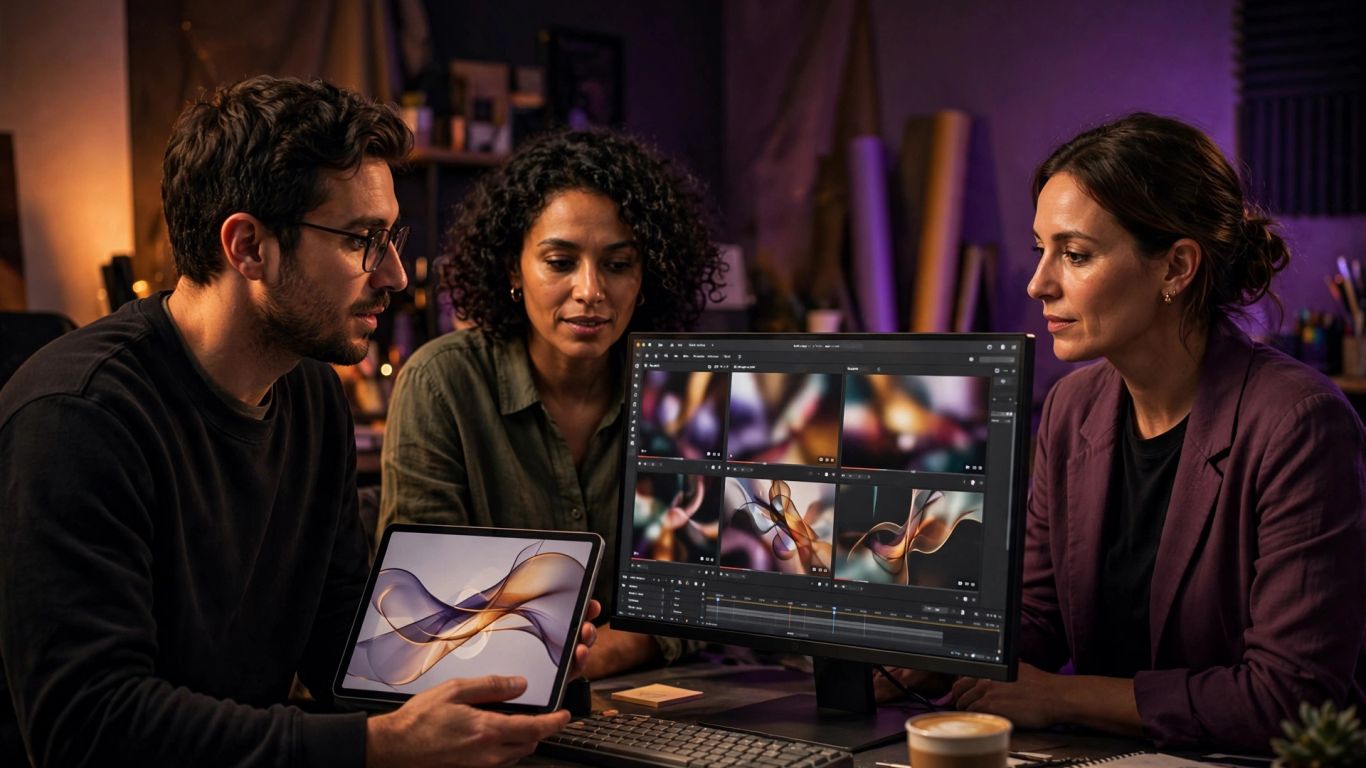
Text-to-video suits a scene you can describe but do not need to anchor to an uploaded image or clip. Write the subject, environment, lighting, camera movement, and visual style in plain language. Available durations are 5, 10, or 15 seconds, so keep the action focused enough to read within the time you select. For more ideas on structuring a prompt, see this guide to adult AI video prompts.
Animate a still image with image-to-video
Image-to-video begins with a PNG, JPG, or WEBP still image, then uses your prompt to describe the motion and scene dynamics you want. It can be a useful route when you already have artwork or a photo and want to develop it into a short moving clip. The available durations are 5, 10, or 15 seconds, and the preview tile adapts to the image’s aspect ratio. A separate image-to-video workflow guide offers more context for thinking through a still-image source.
Restyle footage with video-to-video
Video-to-video starts from uploaded footage and transforms it with AI. You can upload up to three source clips in MP4 or MOV format, each 2 to 30 seconds long and no larger than 100 MB. The documented uses include changing styles, modifying scenes, and restyling footage. Generation durations are 5, 10 or 15 seconds, so check that your chosen source and intended result fit those limits before you begin.
Match duration and aspect ratio to the source
Duration and framing can shape whether a generated clip feels like a natural continuation of its source. The available lengths differ by mode, while aspect ratio and shot type are controls you can choose for each generation. This short checklist keeps the setup tied to your material:
- Check the source image or video’s framing before choosing an aspect ratio.
- Pick a duration that leaves enough time for the action to read.
- Set a shot type that suits the subject and scene.
- Keep the prompt focused on one main movement or change.
Those choices will not replace a clear idea, but they can prevent avoidable mismatches between the source and the output. When in doubt, start with a short, simple version and adjust the setup on a later pass.
Make your prompts more vivid and precise
A prompt is a compact direction sheet for the clip, not a place to pile on every thought at once. Specific visual details help describe the scene, while motion and camera cues tell the model what should change. Keep the key action easy to understand, especially when you are working with a short duration. A few deliberate details usually give you more control than a long string of loosely related adjectives.
Describe the subject, setting, lighting, and mood
Start with the central subject, then add the location, light, and mood. For example, name an adult character, place them in a softly lit studio, and describe the tone as intimate or playful. You can also specify visual style and composition if they matter to the scene. Clear language gives the prompt a visual center, rather than leaving the model to guess which detail matters most.
Direct motion with camera and action cues
A video needs movement, so say what the subject does and how the camera behaves. You might describe a slow turn, a step toward the lens, or a gentle camera push. Pairing one main action with one camera cue can make a scene easier to follow. Try not to ask for several large changes at the same time; a short clip has limited room to show each one clearly.
Use prompt enhancement and negative prompts
The platform includes a prompt enhancer and a tool for generating negative prompts. These can help expand a short description or specify elements to avoid, while keeping the core idea yours. The in-app Guide also covers prompt formulas, cinematic vocabulary, and examples of turning a weak prompt into a stronger one. Treat an enhanced version as a draft to review, not as a reason to stop checking whether the final wording matches your intent.
Plan longer scenes with multi-shot sequences
A longer sequence benefits from a little planning before generation. Multi-shot narrative mode supports sequences with timestamps, which lets you outline how a scene develops across shots. Keep each beat distinct: introduce the setting, describe the central action, then note how the next shot changes the moment. This structure helps you think in scenes rather than trying to cram an entire story into one prompt.
Understand privacy, age checks, and content boundaries
Adult creation calls for clear boundaries as well as creative control. The service is for adults, requires an age confirmation on first visit, and keeps uploaded files private under the user’s account. Generated videos can be managed in a private library, with a separate option to make a video public in Explore. Before uploading or sharing anything, make sure you understand both the platform rules and your own intended audience.
Confirm you are 18 or older before creating
Users must confirm they are 18 or older through the age gate on their first visit. This is a condition of using the platform, not a setting to skip when you reach the creation page. If you are not an adult, do not use the service or create adult material. That boundary applies to every generation mode.
Keep uploads and generated videos in your private library
Uploaded files are stored privately and tied to the account, while generated videos appear in the personal video library. You can watch, download, hide, or delete creations, and the visibility setting lets you decide whether a video remains private or appears in Explore. Review that setting before sharing a clip. A private workspace is useful, but it is still worth checking each item’s visibility rather than assuming every action has the same result.
Know the rules against content involving minors
The content policy prohibits content involving minors and child sexual abuse material of any kind. Do not upload, generate, or share material that violates those rules. If a concept depends on making a person appear underage, leave it out. Straightforward boundaries protect people and keep the creative process on the right side of the platform’s stated rules.
Review the Terms of Service and Privacy Policy
The Terms of Service, Privacy Policy, and Content Policy are linked from the site footer. Read them before you upload source material or make a video public, especially if you have questions about data handling or permitted content. The privacy overview describes an anonymous account model with no public profile or public display of personal information. For the exact terms that apply to your account, rely on the current policy pages rather than assumptions.
Budget for generations with pay-as-you-go credits
A credit system makes it easier to estimate a generation’s direct cost before you start. Package size changes the effective per-second rate, so a small pack may suit a test while a larger one lowers the listed rate. Animator Hub uses these packages for pay-as-you-go video creation, with no subscription required for that pricing model.
Credits cost $0.20 each on the 1,000 credit pack ($200), and 1 credit is 1 second of video at 720p (2 credits per second at 1080p premium), with up to 4K quality through the upscale.
Compare the 100-, 500-, and 1,000-credit packages
The package table gives a quick view of the listed prices and effective rates. The 500-credit option costs $125, while the 1,000-credit package costs $200; the 100-credit starter package costs $30. Compare the amounts against how often you expect to generate clips, not just the lowest per-second price.
| Package | Price | Effective rate |
|---|---|---|
| 100 credits | $30 | $0.30 per credit |
| 500 credits | $125 | $0.25 per credit |
| 1,000 credits | $200 | $0.20 per credit |
The larger packages reduce the effective rate but require a bigger upfront purchase. If you are still testing prompts and settings, starting smaller can help you learn how your workflow uses credits before buying more.
Calculate video costs at 1 credit per second at 720p, 2 at 1080p
Multiply the generated duration in seconds by one credit to estimate the credit cost. A 5-second video uses 5 credits, a 10-second video uses 10, and a 15-second video uses 15. Your package determines the effective cash cost per credit, so the same duration can have a different per-second dollar rate depending on what you bought. Include retries in your budget if you plan to test several versions.
Check your balance and transaction history
The current credit balance appears in the navigation area, and the Credits page includes a wallet view and transaction history with dates, amounts, and statuses. Low-credit warnings appear before generation begins. Use those details to review what you have left and what has already been added to the account. Credits do not expire after purchase, which can make occasional use easier to plan.
Know which payment methods are available
Cryptocurrency is the documented payment option, including BTC, ETH, USDT, and more. Credit card payments are listed as coming soon, so do not count on them being available at checkout. Check the current payment page before you purchase, since the options shown there are the most useful guide to what is available at that time.
Manage, revisit, and share your AI videos
Creation does not end when a clip finishes generating. A personal library gives you a place to check statuses, revisit completed work, and decide what to do with each video. You can download completed clips, organize them into albums, or manage visibility and deletion. For inspiration, Explore shows community videos their creators have set to public.
Track generation progress and download finished clips
The library lists generation statuses such as pending, processing, completed, failed, and expired. In-progress items refresh automatically, and a completion notification can include a thumbnail and a button to watch the result. You can open completed clips in a player and download them. If a generation is still running, check its status before starting another version of the same idea.
Organize creations into albums
Albums can help separate experiments, finished clips, or different project ideas. You can create, rename, and delete albums, then add or remove videos and reorder them with drag-and-drop. Bulk actions let you select multiple videos to add to an album or delete. A simple naming scheme can make a growing library easier to scan later.
Regenerate failed or expired videos
For a failed or expired video, the regenerate action can prefill the Create page with the original prompt, duration, aspect ratio, and negative prompt. That gives you a starting point without having to re-enter every setting. Review the details before trying again, especially if you want to change the prompt or the generation setup. A retry is a fresh attempt, so account for its credit cost as you plan.
Browse public work in the Explore gallery
Explore is a public gallery of community videos that creators have chosen to make public. You can filter entries by generation mode, preview clips, and open a full-screen player. Use it to notice how different prompts and source types shape a result, then take only the general lesson into your own work. Other creators’ clips are inspiration, not a guarantee that the same prompt will produce the same outcome.
Conclusion
Good adult AI video work starts with a clear source, a focused prompt, and realistic expectations about privacy, content rules, and cost. Choose the generation mode that fits your material, make one deliberate test, and use the library to review what worked before you spend credits on another pass.
Frequently Asked Questions
What is AI video generation?
AI video generation creates a video from written instructions, a still image, or existing footage, depending on the tool and mode. The output may vary, so clear prompts and suitable source material help guide the result.
What should I include in a video prompt?
Describe the subject, setting, lighting, mood, and main movement. Add a camera cue or visual style when it helps clarify the scene, but avoid crowding a short clip with too many actions.
How long should an AI-generated clip be?
Choose a length that gives the main action enough time to read. Short clips often work well for a single movement or visual beat, while longer sequences benefit from clearer planning.
Can a still image be animated into a video?
Yes, some AI video workflows take a still image as the source and generate movement guided by a prompt. The image’s framing and content can influence the result.
How can I estimate the cost of a generated video?
Check the tool’s pricing rule, then multiply the cost unit by the video’s duration. Leave room in your budget for additional attempts if you plan to test variations.
Why do adult AI video tools set age and content rules?
Age checks and content rules set boundaries for who can use a service and what material it permits. Read the applicable policies before creating or uploading content.
What should I check before sharing an AI-generated video?
Review the video’s visibility setting, the source material you used, and any rules that apply to the platform where you plan to share it. If you want to keep a clip private, confirm that it is not set to public.