Blog › AI hentai image generator: How to create adult anime art safely and effectively
AI hentai image generator: How to create adult anime art safely and effectively
AI hentai image generator guide: compare tools, write clearer prompts, refine images, and keep adult content safe.
Key Takeaways
A thoughtful workflow starts with a clear visual goal and ends with a careful review of the result. Keep age, consent, privacy, and each platform’s rules in view throughout.
Credits cost $0.20 each on the 1,000 credit pack ($200), and 1 credit is 1 second of video at 720p (2 credits per second at 1080p premium), with up to 4K quality through the upscale.
- Treat an AI hentai image generator as a prompt-based creative tool, not a guarantee of exact results.
- Compare style controls, privacy terms, costs, and content rules before choosing a service.
- Describe adult characters, scene, framing, and lighting in specific, easy-to-read language.
- Refine one detail at a time, then check anatomy and visual consistency before sharing.
- Choose an image-to-video workflow when your goal is motion, and use only content you have the right to use.
What an AI hentai image generator does
An AI hentai image generator turns written descriptions into anime-inspired images, giving creators a way to test character designs and scene ideas without drawing every draft by hand. The result depends on the prompt, the tool’s controls, and its interpretation of the details you provide. Treat the first image as a starting point: clear direction helps, but a little revision is usually part of the process.
How text prompts become images
A prompt gives the generator a set of visual instructions. It may describe a character’s adult appearance, clothing, pose, setting, mood, and art style; the model then combines those elements into an image. Since each system interprets language differently, specific visual details are more useful than a string of vague mood words. If the first result misses the mark, adjust the wording and try again rather than assuming the idea itself cannot work.
Common anime-inspired styles and outputs
Anime-inspired output can range from clean cel shading and bold outlines to softer painterly finishes or more realistic lighting. A prompt can also focus on the type of image, such as a portrait, a full-body character view, or a wider scene with a defined background. Look at examples to find vocabulary that describes the look you want; a few anime-art examples may help you identify broad traits to name in your own prompt. Keep the description focused, since a long list of unrelated style references can pull the image in several directions.
How image generators differ from video generators
An image generator returns a still frame, while a video generator produces a moving clip. The difference affects both your prompt and what you should review: a still can be judged for a single pose and composition, while a clip also needs coherent movement over time. Animator Hub is an AI-powered video generation platform with text-to-video, image-to-video, and video-to-video modes; those are video workflows, rather than a text-to-image mode.
A simple comparison helps keep the goal clear before you choose a workflow:
| Workflow | Main input | Intended result |
|---|---|---|
| Text-to-image | Written visual description | A single still image |
| Image-to-video | Still image and motion prompt | A moving video clip |
| Text-to-video | Written scene description | A moving video clip |
Choose the format that fits the job instead of expecting one tool to handle every stage. If the finished work is a still illustration, stay with an image workflow; if the scene needs motion, consider a video generator.
How to choose a generator
The right generator depends on what you need to make and how you want to work. Some tools offer many style and composition controls, while others keep the process simpler. Check the practical terms as carefully as the preview images: privacy, storage, payment, age requirements, and content rules can all shape whether a service suits your use.
Compare style controls and output quality
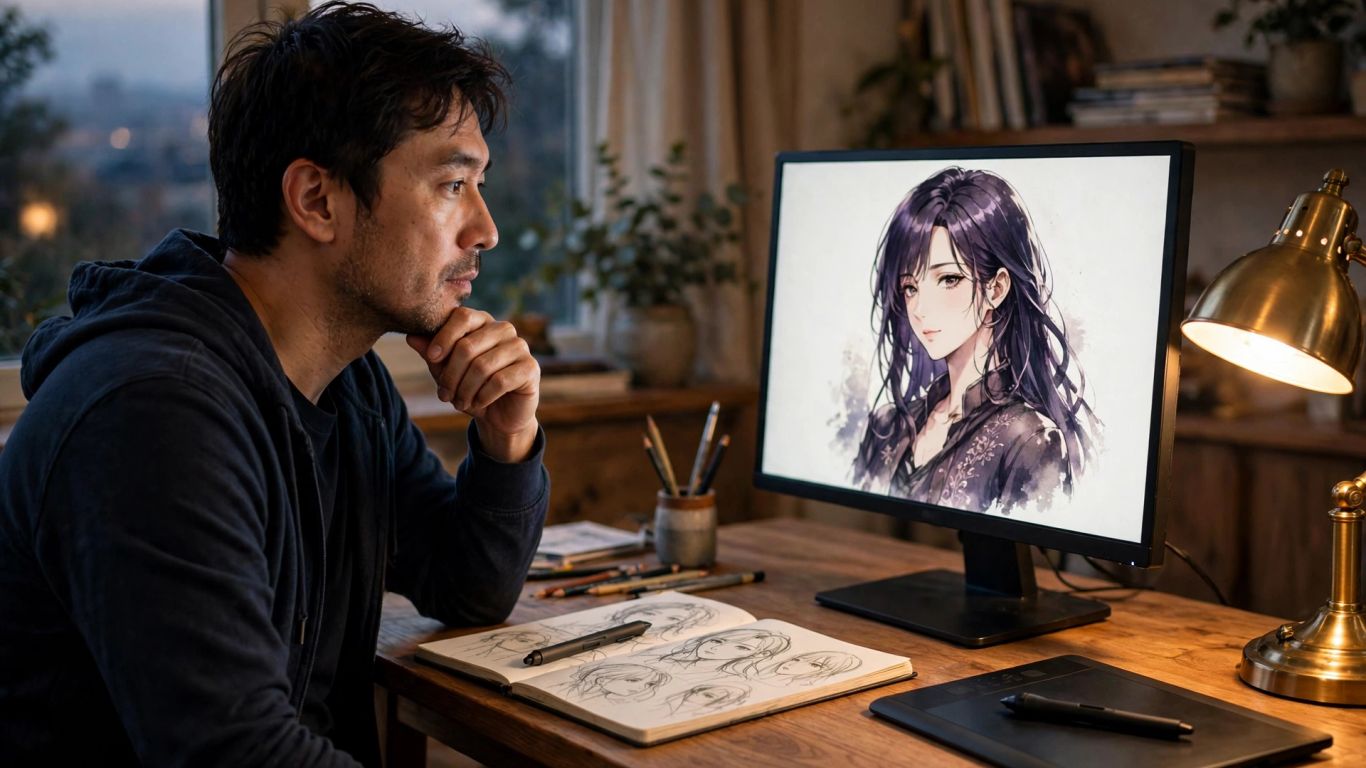
Review the available controls and sample results before committing time or money. Check whether a tool lets you describe or adjust style, character details, pose, composition, and lighting, then compare those options with what you actually want to produce. Look for consistent results across several examples rather than judging a service from one unusually strong image. If animation is part of your workflow, Animator Hub offers text-to-video, image-to-video, and video-to-video generation modes, with 1080p video output described in its platform overview.
Check privacy, storage, and payment terms
Read the privacy and payment details before uploading reference material or saving work to an account. Find out whether files are private or public by default, how long uploads and generated results are stored, and what options are available for deleting or downloading them. Pricing should also be easy to understand: distinguish any one-time or credit-based costs from ongoing charges, and check whether the displayed terms apply to the kind of output you plan to create.
Confirm age rules and content policies
Adult-oriented tools can have different eligibility rules and restrictions, so review the policy before generating anything. Confirm the required age, whether age verification is used, and which categories of content the service prohibits. A policy page is more reliable than assumptions based on a tool’s marketing language; when a rule is unclear, avoid the content until you can verify what is allowed.
How to write effective prompts
A useful prompt gives the model a readable visual plan. Start with the subject and the kind of image you want, then add the setting, framing, lighting, and style that matter most. For adult anime art, state clearly that depicted characters are adults; avoid ambiguity and don’t rely on context to imply age.
Describe adult characters and their appearance
Name a character’s adult age, hair, facial features, build, outfit, expression, and pose in direct terms. Choose details that work together instead of piling on traits that compete for attention. For instance, a prompt might specify an adult character with a short dark bob, a tailored jacket, and a relaxed standing pose. Keep the description focused on the visual qualities you want the image to show.
Set the scene, composition, and lighting
A character description alone may not tell the generator how to arrange the whole image. Add a place, a camera distance, and a light source, then state how the subject sits within the frame. For a repeatable structure, build the scene from a few compact pieces:
- Setting: name a specific room, street, or landscape.
- Composition: choose a close portrait, waist-up view, or full-body frame.
- Lighting: describe soft window light, a warm lamp, or cool evening light.
- Style: use one or two compatible anime or illustration references.
This order moves from the larger scene to its visual treatment, so the prompt reads like a single direction rather than a scattered tag list. Add another detail only when it changes something you can see in the image.
Use negative prompts to reduce unwanted results
Negative prompts can name elements you want the generator to avoid, if the tool supports them. Keep these instructions practical: you might rule out extra fingers, duplicate limbs, cropped heads, or text artifacts. Don’t use a negative prompt as a substitute for clear positive direction; say what you want in the main prompt, then use exclusions to address recurring problems. Results vary by tool, so check whether negative prompts are supported and how that feature behaves.
How to refine and use generated images
A first output is a draft to assess, not a final verdict on the idea. Compare it with your original goal, identify the largest mismatch, and revise with a measured hand. Once it works visually, consider where it will be used and what file format, resolution, and permissions are relevant.
Adjust one prompt detail at a time
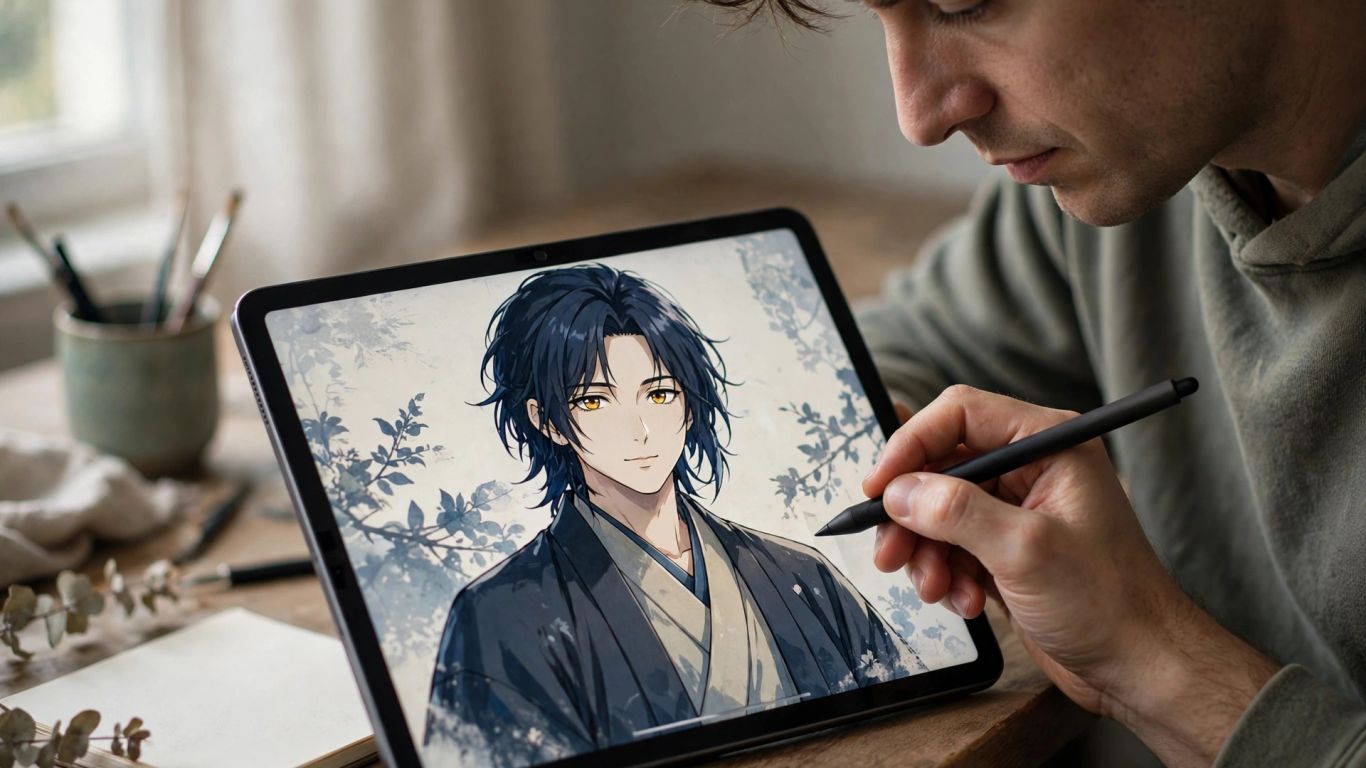
Changing several things at once makes it hard to tell which instruction helped. If the pose is right but the lighting is wrong, keep the pose language and adjust the lighting description alone. Make small revisions to the prompt, then compare the new result with the previous one. That steady process gives you a clearer sense of how the specific generator responds to your wording.
Review anatomy, hands, and visual consistency
Before using an image, inspect the details that are easy to miss at thumbnail size. Check hands, limbs, facial features, clothing edges, and whether the character’s appearance stays consistent across related images. Zoom in on awkward overlaps or distorted shapes, and decide whether another generation or a prompt adjustment would be better. For any adult work, also confirm that every depicted character reads clearly as an adult.
Save, organize, and export image files
A small filing routine saves time once you have several versions. Keep the prompt with the image when practical, use filenames that distinguish drafts from approved files, and separate private working material from anything intended for publication. Export at a size and format that suits the destination, and review licensing or usage terms before distributing the result. A tidy archive also makes it easier to return to a visual direction without starting from scratch.
How to animate a still image
Animation adds movement to an existing still, so the source image and the motion description both matter. Start with a frame that has a clear subject and enough visual information for the tool to interpret. Keep expectations realistic: an image-to-video system creates a moving clip from a still and a prompt, but the motion may not match every detail of the original illustration.
Choose an image-to-video tool when motion is the goal
If you want a still illustration to move, look for an image-to-video workflow rather than assuming an image generator can animate its output. Check the supported image formats, clip durations, and any cost or upload requirements before starting. Animator Hub supports image-to-video generation: it accepts a still image and a prompt describing motion, then generates a video clip. That makes it relevant when the goal is an animated result, not a new standalone still.
Prepare an image with clear subjects and framing
Choose a source image with a readable subject, uncluttered framing, and visible features that should remain stable. Decide what should move and what should stay still before you write the motion prompt. A simple background and a clear outline can make it easier to judge whether the generated clip preserves the original framing and character details. If an important feature is hidden or cut off in the still, the video may not resolve it as you expect.
Add prompts for movement, camera, and duration
Describe movement in concrete terms: a slight turn of the head, a breeze moving hair, or a slow camera push. Keep each motion compatible with the still image, and avoid asking for several large changes at once. Animator Hub lists image-to-video durations of 5, 10, or 15 seconds, so the chosen length can help you plan a brief action rather than an open-ended scene. Review the clip for unintended changes to the subject and framing before deciding to keep it.
Safety, consent, and responsible use
Responsible creation is part of the workflow, not an afterthought. Be clear about who or what an image depicts, keep private material private, and check the rules for both generation and publication. When a prompt or source image raises questions about age, identity, or permission, stop and choose a safer direction.
Keep all depicted characters clearly adult
State that every character is an adult and give an unambiguous adult age where appropriate. Avoid youthful styling or descriptions that could make a character’s age uncertain, especially in sexualized contexts. If an output looks underage or ambiguous, do not keep or share it; revise the concept toward clearly adult features and presentation. Platform rules may prohibit any content involving minors, so verify those rules before use.
Avoid real-person likenesses without permission
Do not use someone’s face, photos, or identifying traits to create sexualized imagery without their informed permission. A fictional character description is a safer choice when you want control over a look without copying a real person. If you are working with a consenting adult’s reference, confirm the scope of permission and respect any limits on storage, editing, and sharing. Consent should be specific to the use, not inferred from access to an image.
Review platform rules before generating or sharing content
Read the applicable terms and content policy before you start, then review them again before publication if the destination has separate rules. Check restrictions on age, likenesses, explicit material, and redistribution, and don’t assume that a private generation is automatically permitted for public sharing. For Animator Hub, the documented content policy requires users to be 18 or older and prohibits content involving minors and CSAM. Follow the rules of the service you use, and keep a copy of any permissions needed for legitimate sharing.
Conclusion
A clear prompt, a patient revision process, and a careful final review can make adult anime image creation more controlled and useful. Choose tools with policies and terms you understand, keep every depicted character clearly adult, and use image-to-video workflows only when you want motion. Good creative practice includes knowing what not to generate or share.
Frequently Asked Questions
What is an AI hentai image generator?
It is a tool that uses a written prompt and other available controls to produce anime-inspired adult images. The output can vary between systems and may need revision.
Do I need drawing experience to use one?
No drawing background is required to write a prompt, though familiarity with visual terms can help you describe style, framing, and lighting. You can learn by testing a small number of specific changes.
What makes an image prompt clearer?
Name the adult subject, appearance, setting, composition, lighting, and style in straightforward language. Prioritize the details that matter most rather than adding many unrelated tags.
What is a negative prompt used for?
Where supported, it tells the generator which unwanted visual features to avoid, such as distorted hands or text artifacts. It works best alongside a clear description of the image you do want.
How can I tell whether a character is clearly adult?
Use an explicit adult age and adult presentation in the prompt, and inspect the result rather than relying on the wording alone. Do not use or share an image if the character appears underage or age-ambiguous.
Can a still image be turned into a video?
Yes, an image-to-video tool can use a still image and motion instructions to generate a clip. The resulting movement may alter details, so review the finished video carefully.
Can I share generated images publicly?
That depends on the platform’s rules, applicable permissions, and the rights attached to any reference material. Review those terms before sharing, and never use a real person’s likeness in sexualized content without permission.